

How to Remove Duplicate Pages From a PDF After Merging
Find pages that repeat after combining PDFs, delete the extra copies, and check the final page count. Tested with overlapping files and a re-scan.
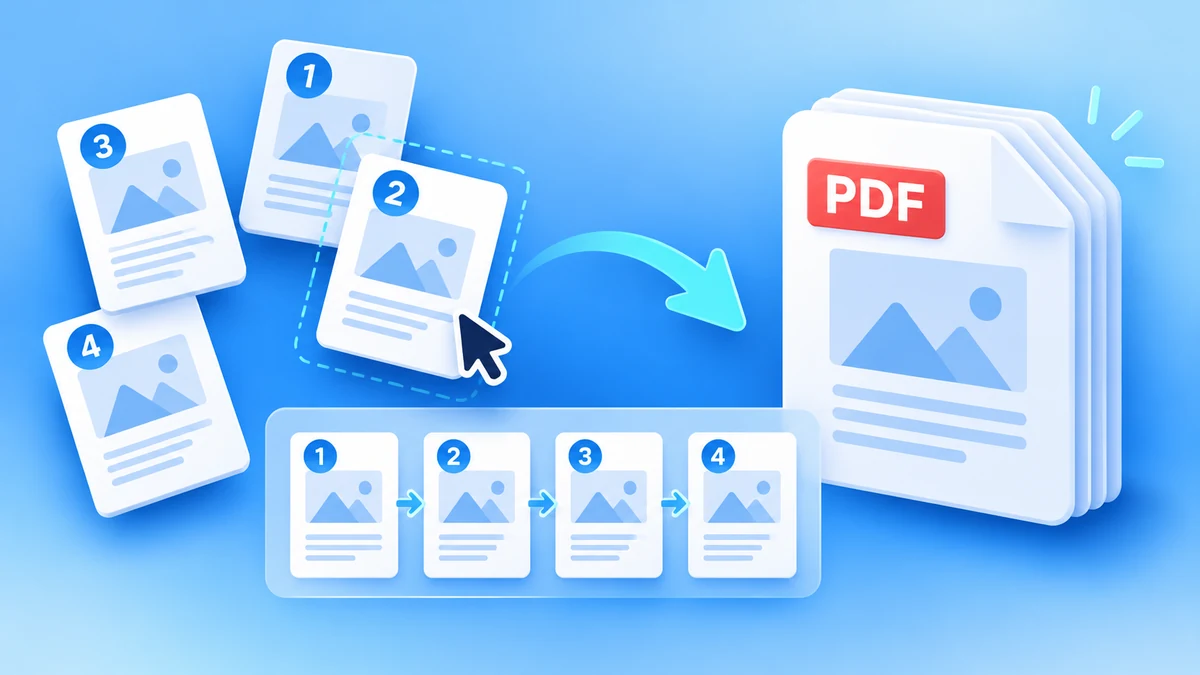
The Organize PDF tool shows every page as a thumbnail so you can put pages in order, turn sideways ones upright and drop the ones that should not be there. This guide follows one real job, assembling a four-page application packet from three separate files, and then covers the most common reason people need it: a merged PDF that came out in the wrong order.
The packet had to be sent in this order: cover letter, two-page application form, certificate. The files we had were packet-form.pdf (2 pages), packet-cover-letter.pdf (1 page) and packet-certificate.pdf (1 page, saved sideways).
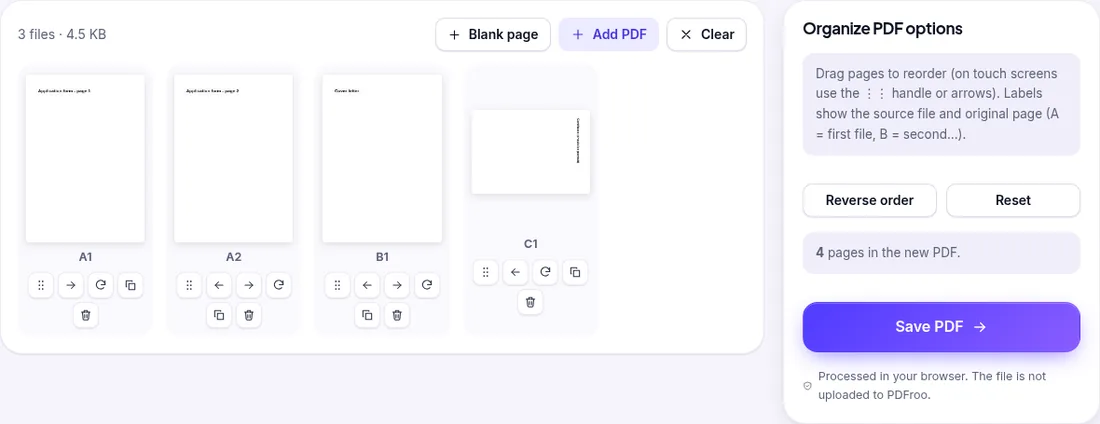
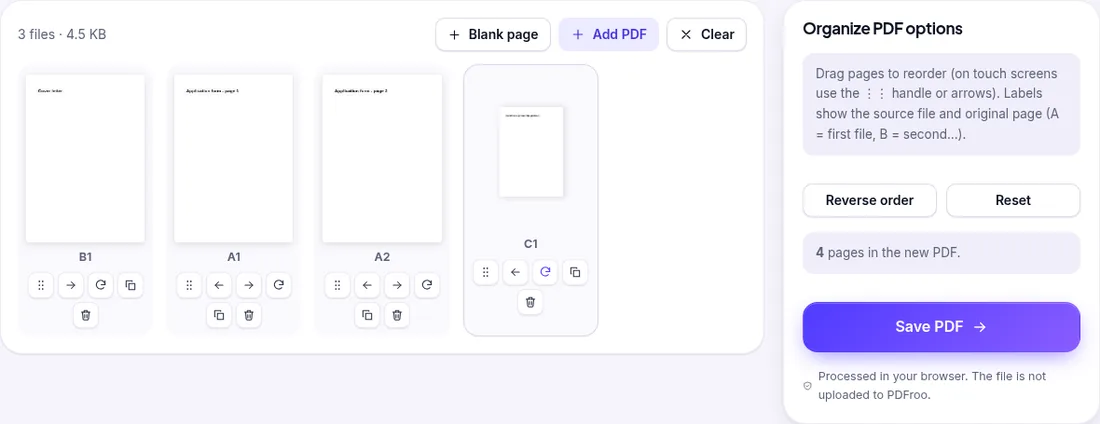
The downloaded file (named after the first file you added, plus -organized.pdf) had four pages in the order cover letter, form page 1, form page 2, certificate, and the certificate was portrait. We confirmed the order with pdftotext and the rotation with pypdf.
Above the grid, Blank page adds an empty page at the end of the grid; when saved it takes the size of the page just before it in the new file. Move it where you need it, for example to make a chapter start on a right-hand page when printing double-sided. Reverse order flips the whole sequence (handy for a stack scanned last page first) and Reset puts everything back to how it was uploaded.
If you have already merged files and the result is out of order, you rarely need to start again. Open the merged file in Organize PDF; because it is now one file, the labels show the page numbers of the merged file (1, 2, 3…), which makes it easy to spot the problem.
| What you see | Likely cause | Fix |
|---|---|---|
| A whole section is in the wrong place | Files were added in the wrong order | Drag the first page of the section, then the rest, or merge again with the files in the right order if most of the document is wrong |
| Pages of one scan run backwards | The scanner fed the stack from the last page | Select just that file, use Reverse order, then merge |
| “Page 10” comes before “Page 2” | File names were sorted as text | Rename with leading zeros (01, 02 … 10) before merging |
| One page is upside down | It was scanned or photographed that way | Rotate it twice (180°) |
To avoid the problem next time, see how to plan a merge so the order is right first time.
If some pages now appear twice because the files overlapped or a page was re-scanned, see how to remove duplicate pages after merging.
Organize PDF builds a new PDF from the pages you kept. The page content itself (text, images, vector graphics) is copied unchanged and text stays selectable. In our related tests with the same page-building code (Delete and Extract Pages), bookmarks were not carried over, and an internal link pointing to a page elsewhere in the file stopped working. If your document relies on bookmarks or a clickable contents page, check them after saving.
| Date | 22 October 2026 |
|---|---|
| Environment | Google Chrome 155 (headless) on Linux x86_64, desktop viewport 1280×900, PDFroo build of 22 October 2026 |
| Input | Three fictional files: 2-page form, 1-page letter, 1-page certificate stored with a 90° rotation flag (4.5 KB in total) |
| Actions | Two moves, three 90° rotations on the certificate, Save PDF |
| Output | 4 pages, 1.7 KB, order letter → form 1 → form 2 → certificate; certificate rotation 0° (upright) |
Our checks are described on the testing methodology page.
Find pages that repeat after combining PDFs, delete the extra copies, and check the final page count. Tested with overlapping files and a re-scan.
Type on a PDF, cover areas with white boxes or highlight text. Tested: the white box hides text visually, but the covered words remain in the file.
Trim white margins or scanner edges from one page or all pages. Tested: the crop box changes what is shown, but the cut-off text is still inside the file.
Choose a page number format, skip a cover page, set a start number and check landscape or merged pages, with a tested walkthrough of PDFroo.
Mark a PDF as DRAFT or add a logo with PDFroo: opacity, angle, tiling, page ranges, what a watermark can and cannot do, and how to check the result.
Plan a page range, extract non-consecutive pages into a new PDF, and check that confidential pages, bookmarks and links did not come along. Tested example.