

Combine Scanned Documents Into One PDF and Fix Page Problems
Merge several scans into one PDF, then fix upside-down pages, remove blank backs and check mixed page sizes. A tested two-step workflow, with its limits.
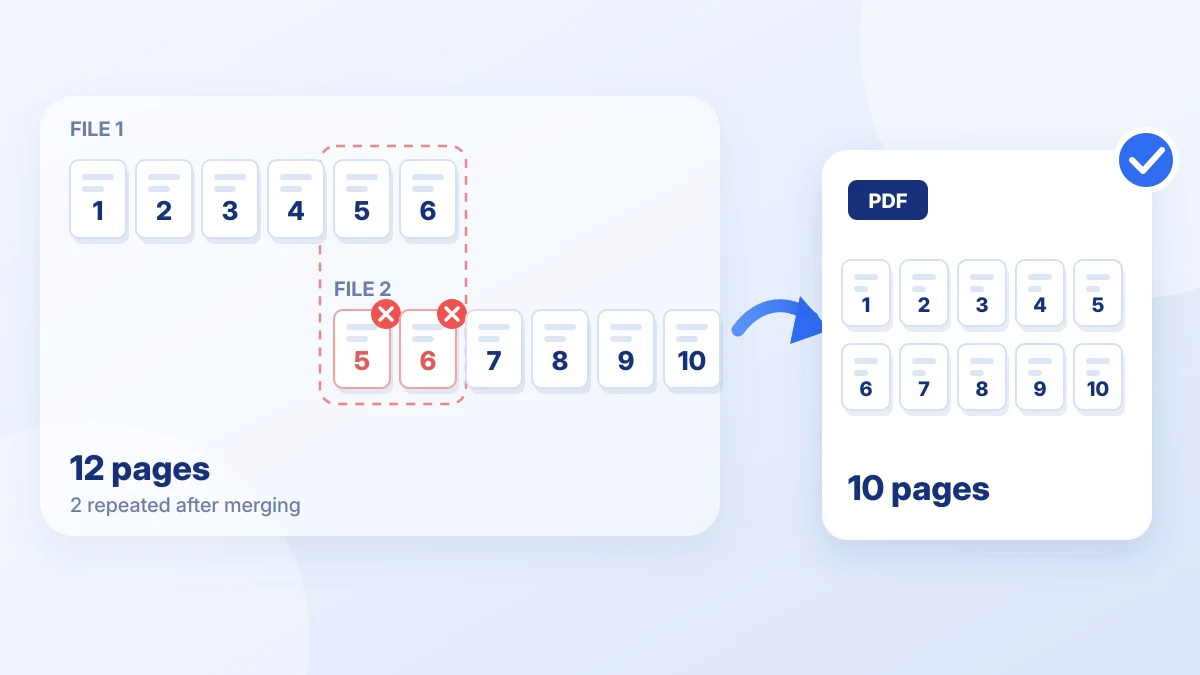
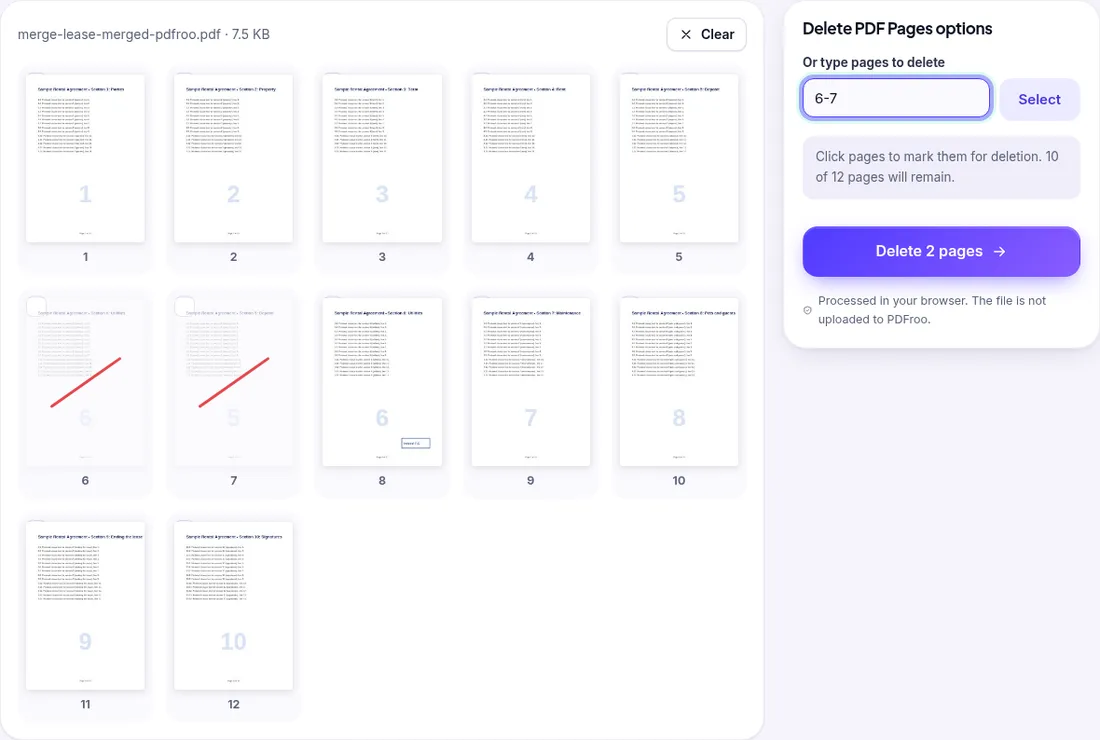
To remove duplicate pages after merging, first work out which pages repeat (the total page count is the quickest clue), then delete the extra copies: either in Organize PDF, where you can add the original files and drop the repeats before you save one combined PDF, or in Delete PDF Pages, where you type the page numbers of the repeats in the already merged file. Neither tool finds duplicates for you, so the checking is up to you. In our test, a 10-page agreement exported as two overlapping parts merged into 12 pages, and both routes gave back the correct 10 pages in order.
This guide is only about repeated pages. For setting the file order before you merge, see Merge PDFs in the Right Order; for moving and rotating pages, see How to Organize PDF Pages; for removing pages that should not be shared, see How to Delete Pages From a PDF.
Merge PDF does not skip or flag repeated pages. It copies every page of every file, in the order of the file list.
Add your files to Merge PDF and look at the page count under each file name and the total in the options panel. Compare the total with the number of pages the finished document should have. In our test the two parts showed 6 pages each and the panel said 12 pages total for a 10-page agreement, so we knew two pages repeated before merging anything.
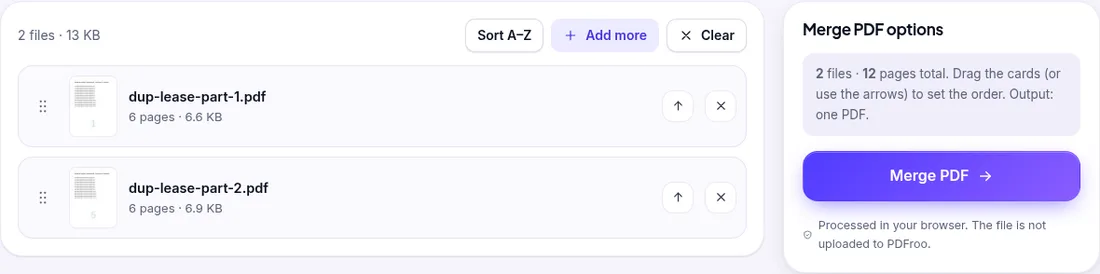
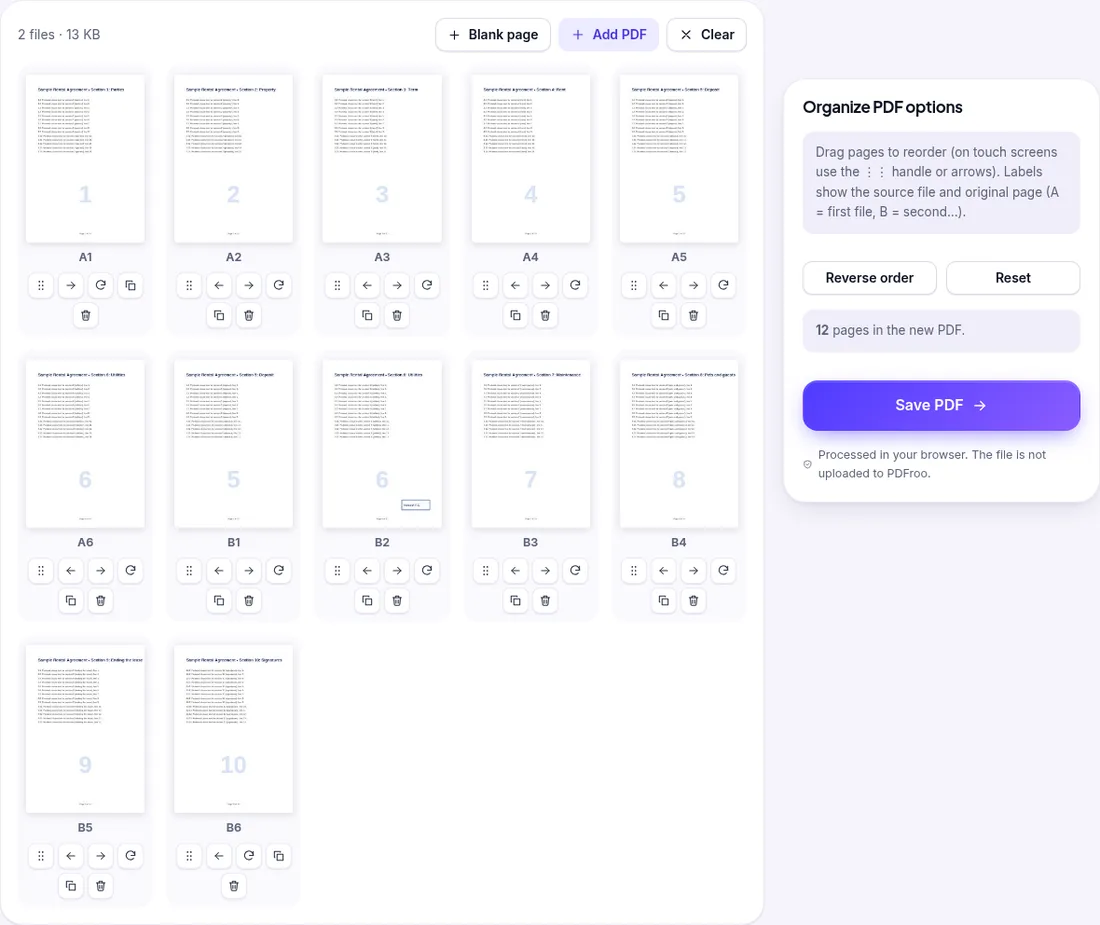
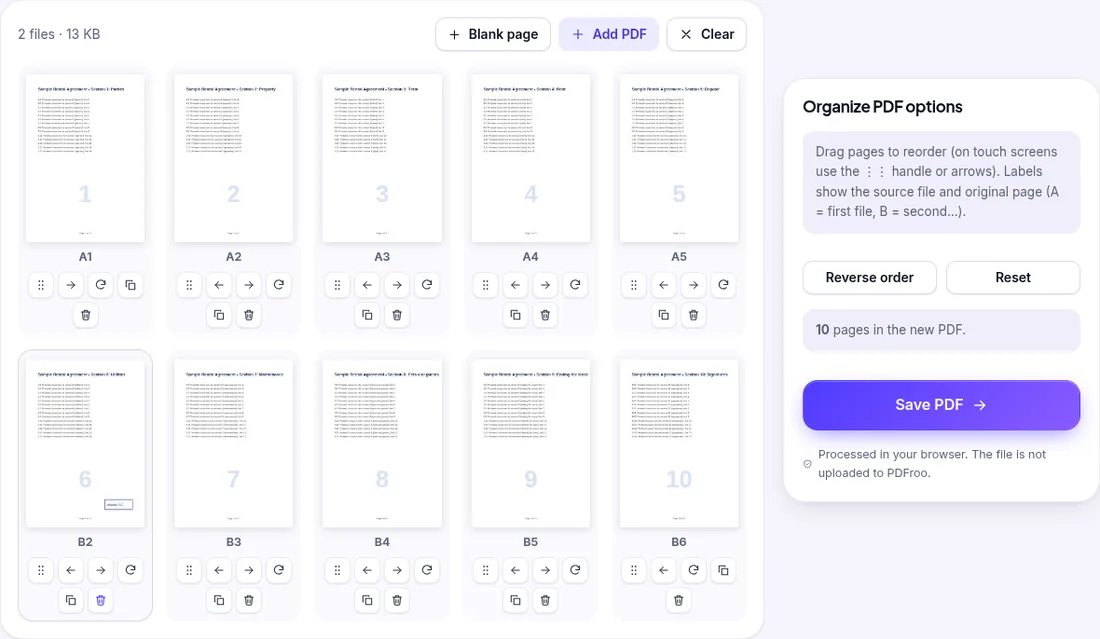
If you still have the separate files, this is the most direct route, because you can remove the repeats before the combined file is saved.
If you only have the merged PDF, use Delete PDF Pages. The labels here are simply 1, 2, 3… for the merged file.
We merged two scan batches of a fictional 5-page statement. The first batch ended with a crooked, dark scan of sheet 3, and the second batch started with a clean re-scan of the same sheet, so the merged file had 6 pages. On the Merge PDF result screen we chose Organize PDF under “Continue with your file”, which opened the merged file there. The crooked copy (page 3) was easy to spot in the thumbnails, so we deleted it and saved a 5-page PDF.
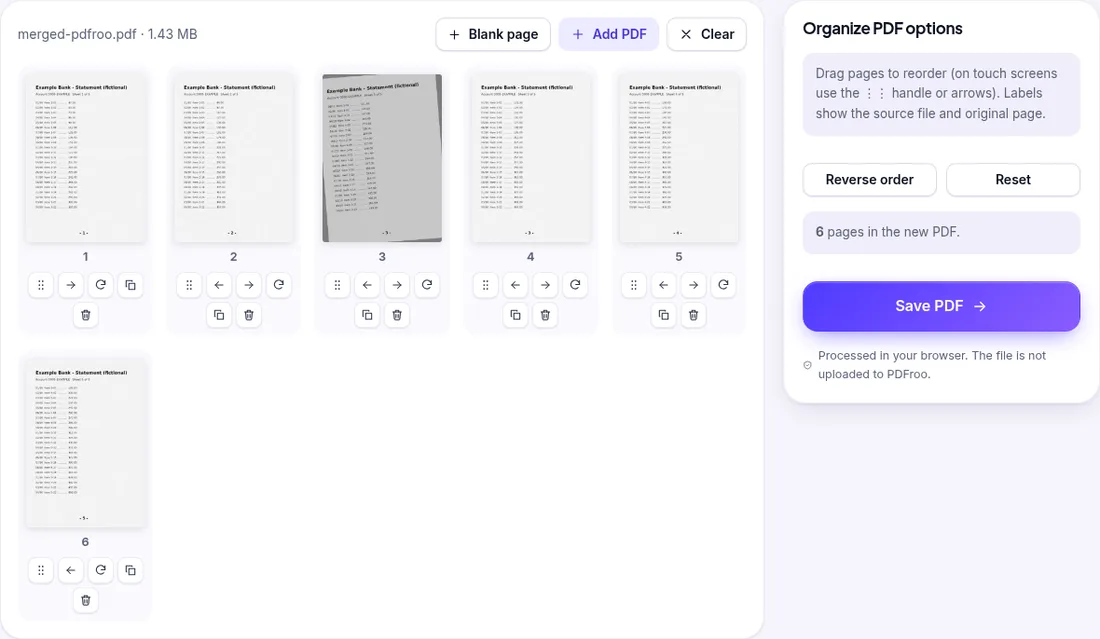
When you open a merged file this way, the thumbnails are labeled 1 to 6, not A and B, so you can no longer see which file a page came from. If that matters, add the original files to Organize PDF instead.
| Run | Input | Output | Checked with a script |
|---|---|---|---|
| Merge PDF | Part 1 (pages 1–6, 6.6 KB) + part 2 (pages 5–10, 6.9 KB) | 12 pages, 7.5 KB | Section order 1, 2, 3, 4, 5, 6, 5, 6, 7, 8, 9, 10; initials only on page 8 |
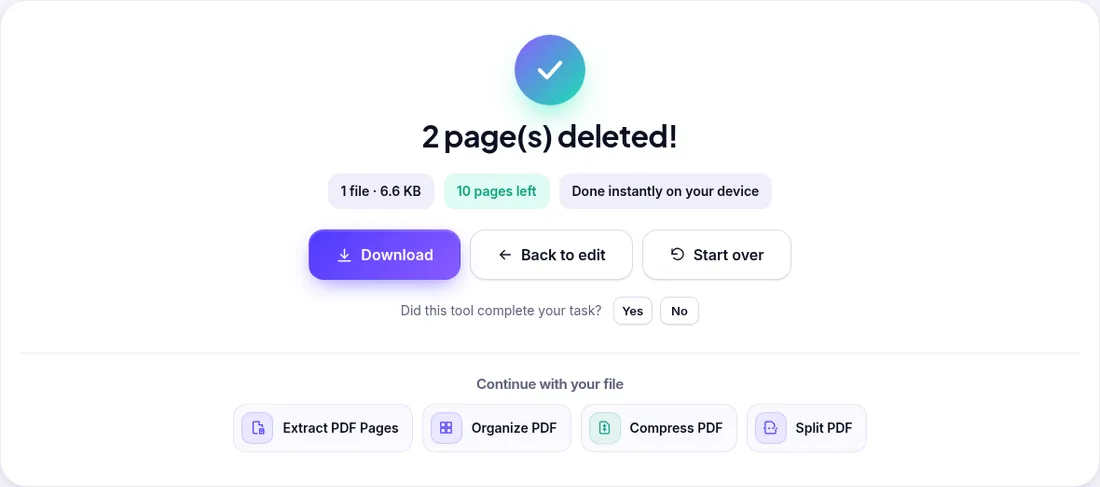
| Delete PDF Pages, “6-7” | The 12-page merged file | 10 pages, 6.6 KB | Sections 1–10 in order; initials on page 6; “Section 5:” and “Section 6:” found once each |
| Organize PDF, A6 and B1 deleted | Both parts added directly | 10 pages, 6.6 KB | Identical result to the Delete route: sections 1–10, initials on page 6 |
| Merge PDF, then Organize PDF | Scan batch 1 (sheets 1, 2, crooked 3) + batch 2 (re-scan of 3, 4, 5) | 6 pages (1.43 MB), then 5 pages (1.19 MB) | Each rendered page matched to its source sheet: 1, 2, 3 (re-scan), 4, 5 |
Every run finished in under a tenth of a second after pressing the button (53–95 ms). Removing the duplicate scan made the file about 17% smaller, because each scanned page is a full image. With the small text PDFs, the saving was under 1 KB.
| Date | 31 October 2026 |
|---|---|
| Environment | Google Chrome 156 (headless) on Linux x86_64, desktop viewport 1280×900, the live tools at pdfroo.com/merge-pdf, pdfroo.com/delete-pdf-pages and pdfroo.com/organize-pdf |
| Test files | A fictional 10-page rental agreement exported as two overlapping text PDFs (pages 1–6 and 5–10, with tenant initials added to page 6 in the second part, 6 bookmarks each), and a fictional 5-page bank statement scanned as images in two batches (sheets 1–3 with a crooked, dark sheet 3; then a re-scan of sheet 3 and sheets 4–5). All four files were made by a script. |
| Steps | Merge both parts, then delete pages 6–7 in Delete PDF Pages; separately, add both parts to Organize PDF and delete A6 and B1; merge the two scan batches, open the result in Organize PDF and delete page 3 |
| Results | See the table above. Page counts, page order, which copy was kept, and bookmarks were checked in the downloaded files with pypdf, pdftotext and pdftoppm. |
| Network | We logged every request the browser made after the files were chosen. None of them contained the PDFs, their contents or their file names. The requests to PDFroo were GETs for the site’s own scripts, images and PDF viewer. The only requests that sent data were Google Analytics usage events (tool name, number of files and outputs, timings) and a Cloudflare page-load timing report when the merged file was opened in Organize PDF. Each was under 1 KB (the largest 644 bytes), and we checked that none contained the file names or any text from the files. |
See our tool testing methodology for how we test PDFroo tools in general.
Merge several scans into one PDF, then fix upside-down pages, remove blank backs and check mixed page sizes. A tested two-step workflow, with its limits.
Find the right pages to remove, delete them without touching the original, then check printed page numbers, contents links and bookmarks. Tested on a 12-page file.
Put a document packet in the right order with page thumbnails: move, rotate, duplicate or delete pages, fix a merged file, and check what changes.
Name files so they sort correctly, set the order in Merge PDF, and know when to fix order afterwards. Includes a real Sort A–Z pitfall we found in testing.
Turn a phone photo of your handwritten signature into a clean, see-through signature on a PDF. We tested six photos: what worked and what left a box.
Prepare a PDF for long-term archiving by checking text, page order, metadata, forms, compression, file naming, backups, and PDF/A requirements.