

Split a PDF: Custom Ranges, Every N Pages or Single Pages
Break a PDF into parts by page ranges, fixed chunks or single pages. Tested on a 12-page file, with the output names and a size surprise for scans.
Extracting pages is usually about not sending something: you need to share the summary and budget from a report, but not the staff notes in the middle. The Extract PDF Pages tool builds a new file from only the pages you pick. This guide covers planning the range, the order the pages come out in, and how to check that nothing you left out is still in the file.
Open the original in any viewer and write down the page positions you need. Use the position in the file (the first page is 1), not the number printed in the footer; they often differ when there is a cover or roman-numbered front matter.
| You type | You get |
|---|---|
3 | Page 3 only |
5-6 | Pages 5 and 6 |
3, 5-6, 10 | Pages 3, 5, 6 and 10 |
9- | Page 9 to the last page |
-4 | Pages 1 to 4 |
Commas or semicolons separate parts. A number past the last page produces “Pages must be between 1 and N” when you press Select.
Order: the new file always keeps the original document order. Typing 10, 3 gives page 3 then page 10. If you need a different order, extract first and then rearrange with Organize PDF.
yourfile-extracted.pdf.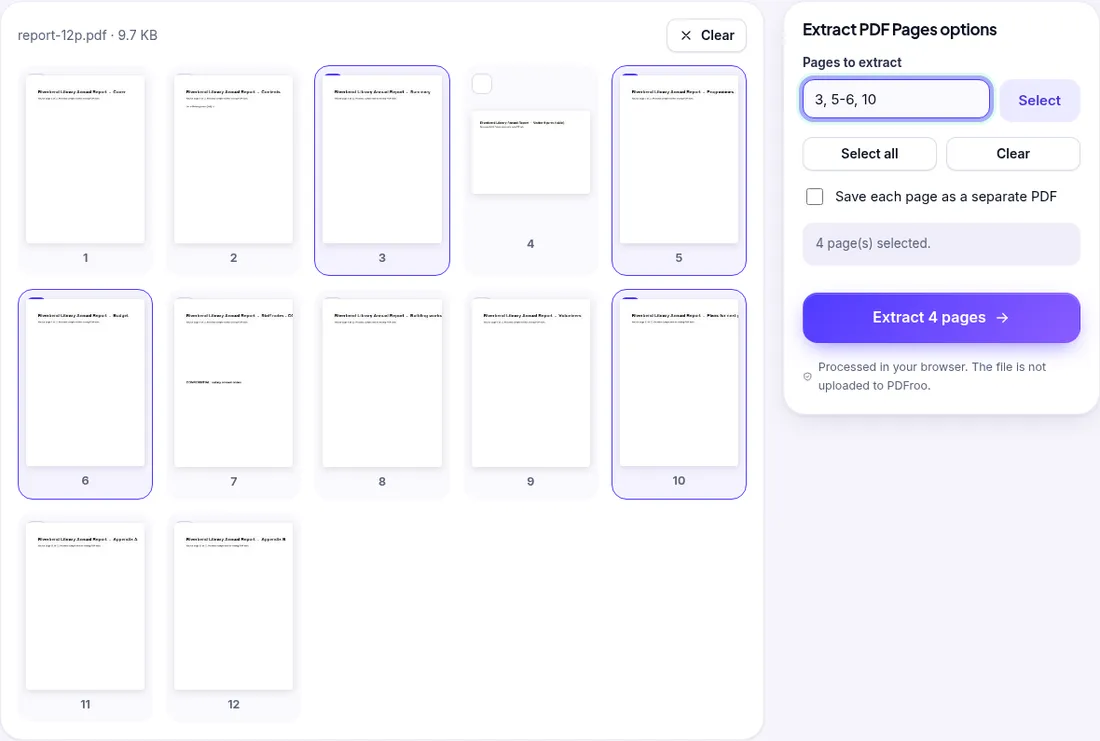
In our test the original report had a page 7 headed “CONFIDENTIAL: salary review notes”, and one of its bookmarks was named “Staff notes - CONFIDENTIAL”. After extracting pages 3, 5, 6 and 10 we checked three things:
You can do a simple version of this yourself: open the extracted file, press Ctrl+F (Cmd+F on a Mac) and search for a word that only appears on the pages you left out. It should find nothing. Also check the bookmarks or outline panel of your viewer, and the document properties (title, subject, author) with the PDF Metadata Editor, because those can describe the full document.
One caution: extracting pages does not remove anything that is on a page you keep. If a kept page has a name or number you should not share, that needs proper redaction, which is a separate job; see how to redact a PDF safely.
The extracted file is a new PDF built from copies of the chosen pages. Bookmarks are not copied, and a link that pointed to another page of the original will no longer lead anywhere useful. Links to websites on a kept page are part of that page and usually survive. If the person receiving the file needs navigation, tell them the page range in your message instead.
| Date | 22 October 2026 |
|---|---|
| Environment | Google Chrome 155 (headless) on Linux x86_64, desktop viewport 1280×900, PDFroo build of 22 October 2026 |
| Input | Fictional 12-page A4 report, 9.7 KB, 12 bookmarks, one internal link on page 2 |
| Range | 3, 5-6, 10, combined output |
| Output | 4 pages, 2.1 KB; 0 bookmarks; no text from pages 1, 2, 4, 7, 8, 9, 11 or 12 |
How we run these checks: testing methodology.
Break a PDF into parts by page ranges, fixed chunks or single pages. Tested on a 12-page file, with the output names and a size surprise for scans.
Find the right pages to remove, delete them without touching the original, then check printed page numbers, contents links and bookmarks. Tested on a 12-page file.
Learn why black boxes and cropping may not remove PDF data, then follow a safer workflow to redact, flatten, verify, and share sensitive files.
Type on a PDF, cover areas with white boxes or highlight text. Tested: the white box hides text visually, but the covered words remain in the file.
Trim white margins or scanner edges from one page or all pages. Tested: the crop box changes what is shown, but the cut-off text is still inside the file.
Choose a page number format, skip a cover page, set a start number and check landscape or merged pages, with a tested walkthrough of PDFroo.