

How to Sign a PDF Without Printing or Scanning (Free)
Sign a PDF in your browser: draw, type or upload a signature and place it on the page. Tested, with what this kind of signature is and isn’t.
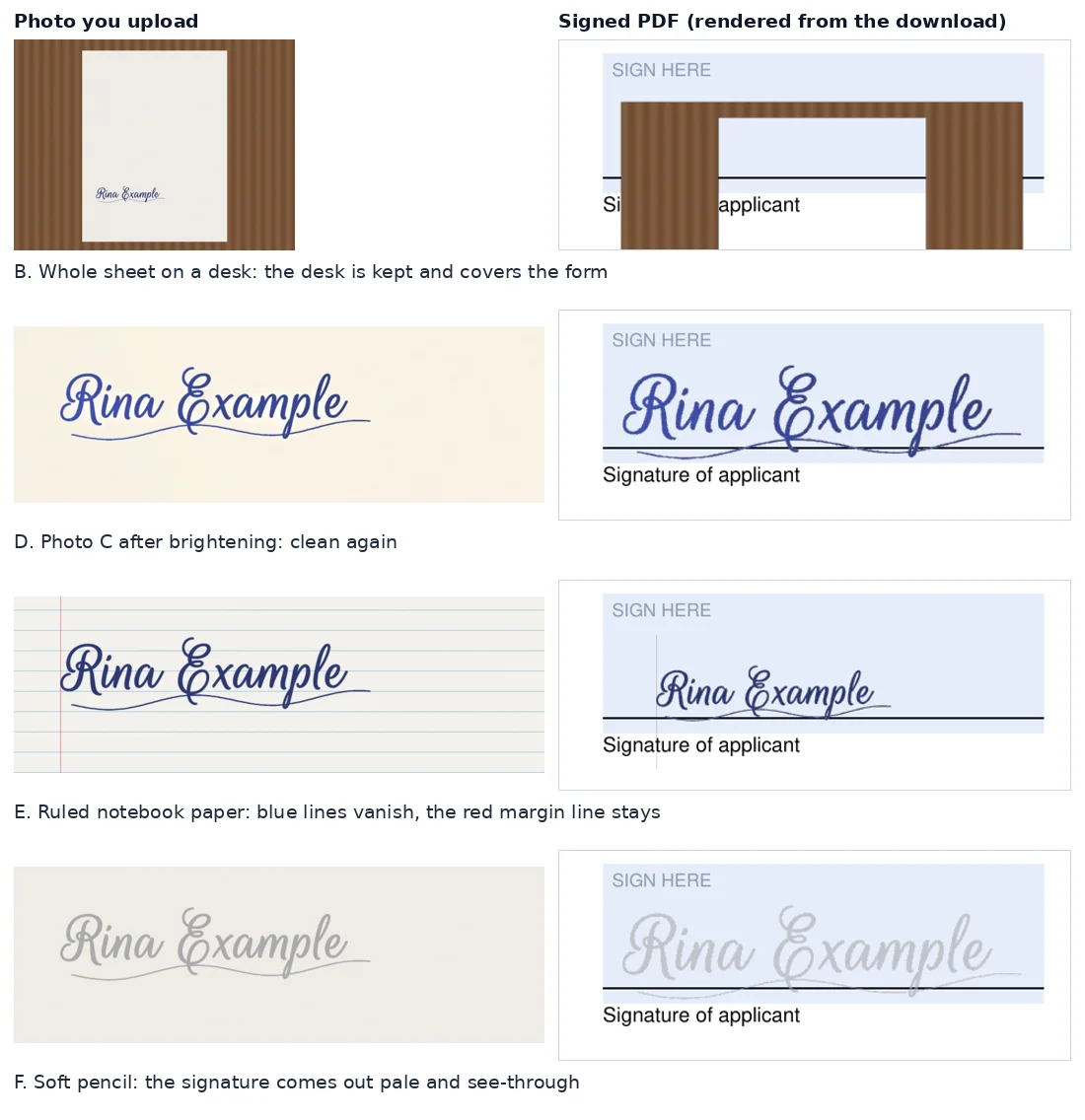
Sign a sheet of plain white paper with a dark pen, photograph it in even daylight, crop the photo close to the signature, then upload it in Sign PDF with Remove white background ticked. In our test that gave a clean signature with a see-through background that sat on the form’s signature line without hiding it. The things that went wrong were all in the photo: a shadow, the desk around the paper, ruled paper and pencil.
This guide is about getting the photo right. For the general signing steps and what this kind of signature is (and is not), see How to Sign a PDF Without Printing or Scanning.
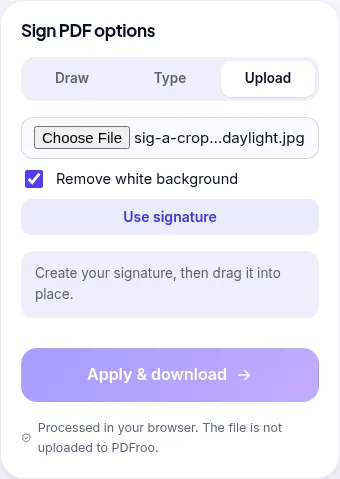
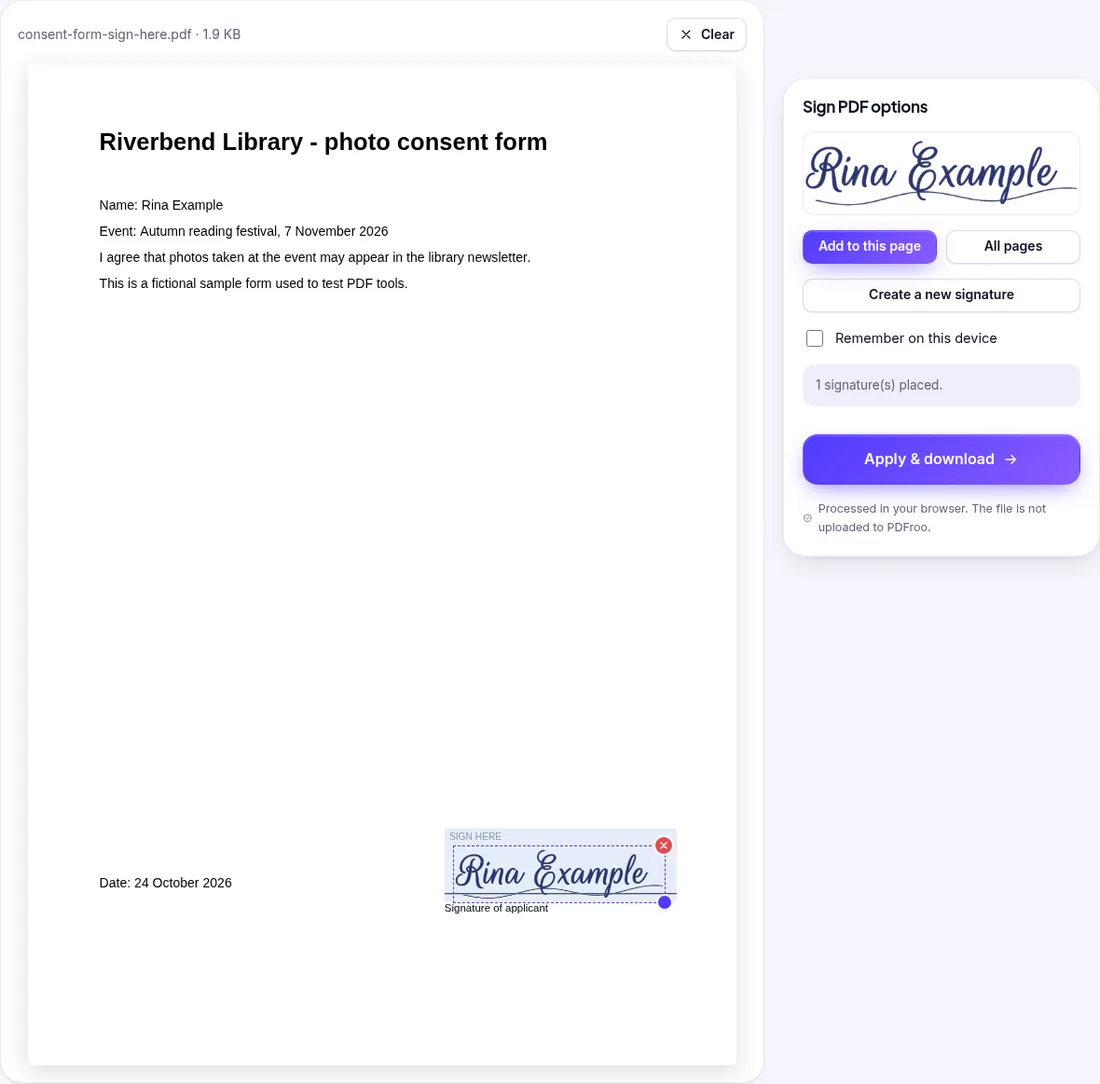
The background removal is a brightness cut-off, not object detection. Reading the tool’s code and checking the outputs, this is what it does:
So the tool cannot tell paper from desk or shadow. It only removes what is close to white, which is why the photo matters more than any setting.
We signed the same one-page sample form with each photo, with the signature in the same default position and size.
| Photo | Signature image in the PDF | Result | Signed PDF |
|---|---|---|---|
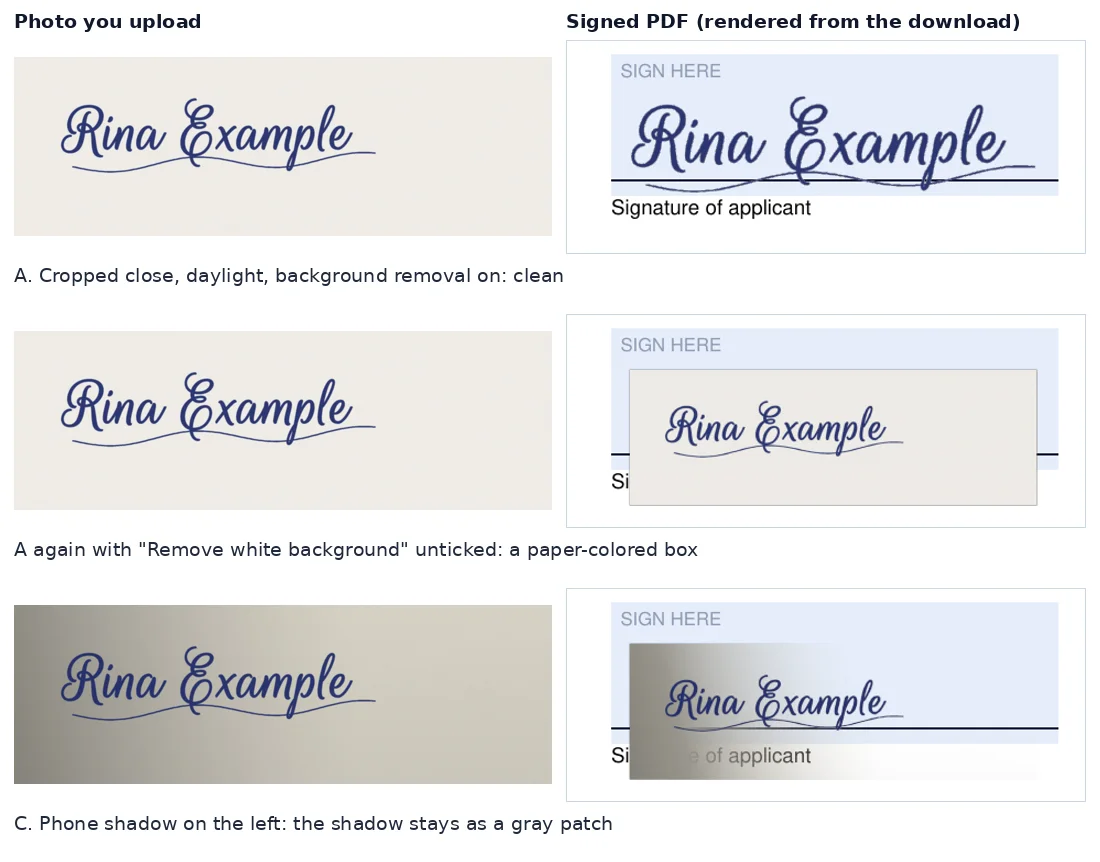
| A. Cropped close, daylight | 832 × 208 px, trimmed | Clean: only the ink, the form shows through | 101 KB |
| A with “Remove white background” off | 1412 × 479 px | An off-white box covered the line and part of the label | 514 KB |
| B. Whole sheet on a wooden desk | 1412 × 1062 px | The paper vanished but the desk stayed and covered the form; the signature was tiny | 817 KB |
| C. Cropped, phone shadow on the left | 1412 × 479 px | A gray patch fading to white across the field | 705 KB |
| D. Photo C after brightening | 832 × 207 px, trimmed | Clean again | 105 KB |
| E. Ruled notebook paper | 1412 × 479 px | Blue lines disappeared; the red margin line stayed as a thin gray line, and the untrimmed image made the signature smaller | 124 KB |
| F. Soft pencil | 830 × 206 px, trimmed | Pale and see-through: the darkest strokes were only about 68% opaque | 71 KB |
The form itself was 1.9 KB. A clean, tightly cropped signature added about 100 KB. Photos the tool could not clean up added up to 815 KB, which matters if the signed PDF has to fit an upload limit.
| Date | 24 October 2026 |
|---|---|
| Environment | Google Chrome 156 (headless) on Linux x86_64, desktop viewport 1280×900, the live tool at pdfroo.com/sign-pdf |
| Test files | A fictional one-page consent form (1.9 KB) with a shaded “Sign here” field, and six simulated phone photos of the fictional signature “Rina Example”, made by a script to reproduce common capture problems: five 2400 × 800 px crops (daylight, shadow, shadow brightened, ruled paper, pencil) and one 4032 × 3024 px whole-sheet photo on a desk. The daylight photo was used twice, with background removal on and off. |
| Settings | Upload tab, “Remove white background” on (off for one run), default position and size |
| Results | See the table above. Every output had 1 page and 1 embedded signature image with a transparency channel; the form text was unchanged. |
| Timing | Preparing the signature took 0.12–0.26 s and saving the signed PDF 0.1–0.4 s |
| Network | After the files were chosen, the only requests were GETs for PDFroo’s own scripts (the PDF viewer and tool code). No request went to another site and no request sent data, so neither the PDF nor the photo was uploaded. |
We extracted the signature image from every downloaded PDF with pypdf, measured its size and transparency, rendered each page with pdftoppm and checked the text with pdftotext. See our tool testing methodology.
Sign a PDF in your browser: draw, type or upload a signature and place it on the page. Tested, with what this kind of signature is and isn’t.
Fit a photo under 20, 50, 100 or 200 KB or to an exact pixel width. Tested with a 4 MP phone photo, PNG screenshots and a batch, with real sizes and pitfalls.
Find pages that repeat after combining PDFs, delete the extra copies, and check the final page count. Tested with overlapping files and a re-scan.
Prepare a PDF for long-term archiving by checking text, page order, metadata, forms, compression, file naming, backups, and PDF/A requirements.
Learn why black boxes and cropping may not remove PDF data, then follow a safer workflow to redact, flatten, verify, and share sensitive files.
Make a PDF easier to read on a phone by fixing orientation, cropping wide margins, splitting long files, and preserving clear searchable text.