

PDF Metadata: How to View, Edit and Remove It Before Sharing
What PDF metadata is (title, author, creator, dates, XMP), what it can reveal, and how to view, edit or remove it in your browser. Tested, with before and after.
A PDF that opens correctly today is not automatically ready to preserve for many years. Long-term access depends on more than the file extension. Page order, readable text, fonts, forms, annotations, metadata, compression choices, filenames, storage, and backups all affect whether the document will still be understandable later.
This guide explains how to prepare a practical archive copy with PDFroo and when a formal PDF/A workflow is more appropriate. PDFroo can help you inspect, organize, flatten, compress, and describe a PDF, but it does not create or certify PDF/A files.
Before editing the document, decide what the archive should represent:
For important records, keep the original and create a separate prepared copy. Do not silently replace the source. A clear relationship between the original and the final version is more useful than one heavily edited file with no history.
A filename should make sense without opening the document. Avoid names such as final.pdf, scan0004.pdf, or document-new-final2.pdf. A consistent pattern is easier to sort and understand:
YYYY-MM-DD_document-type_subject_version.pdf
For example:
Use only the details needed to identify the file. Do not put a Social Security number, account number, diagnosis, password, or another sensitive value in the filename because filenames may remain visible even when a PDF is encrypted.
Open the document and review it from beginning to end. Confirm that pages are complete, upright, and arranged correctly. Look for duplicate pages, blank scanner backs, accidental instruction sheets, missing attachments, and pages taken from another document.
Use Organize PDF to move, rotate, duplicate, or remove pages and to insert a deliberate blank page when necessary. PDFroo copies the existing pages rather than re-rendering them, so page quality is not reduced. However, the newly organized PDF does not retain every bookmark, document property, or interactive form structure. Keep the original when those features matter.
Searchable text makes an archive easier to find, quote, index, and review with assistive technology. Test the PDF by selecting a sentence, copying it into a plain-text editor, and searching for a distinctive phrase.
If nothing can be selected, the page may be a scan or photograph. Optical character recognition, or OCR, can add a text layer, but OCR results should be checked because names, numbers, tables, and faint scans are often misread. Preserve the visible scan rather than replacing it with unverified OCR text.
Avoid converting a text-based document into page images without a reason. Image-only pages lose their normal text layer and usually require more storage. Use image conversion only when you intentionally need a fixed visual record.
Interactive form values or annotations can appear differently in another PDF viewer. If the document is final and future readers should see the current values, open Flatten PDF.
Keep an editable original in addition to the flattened copy when the form may need to be updated later. Flattening is intended to create a final-state version, not an ongoing working document.
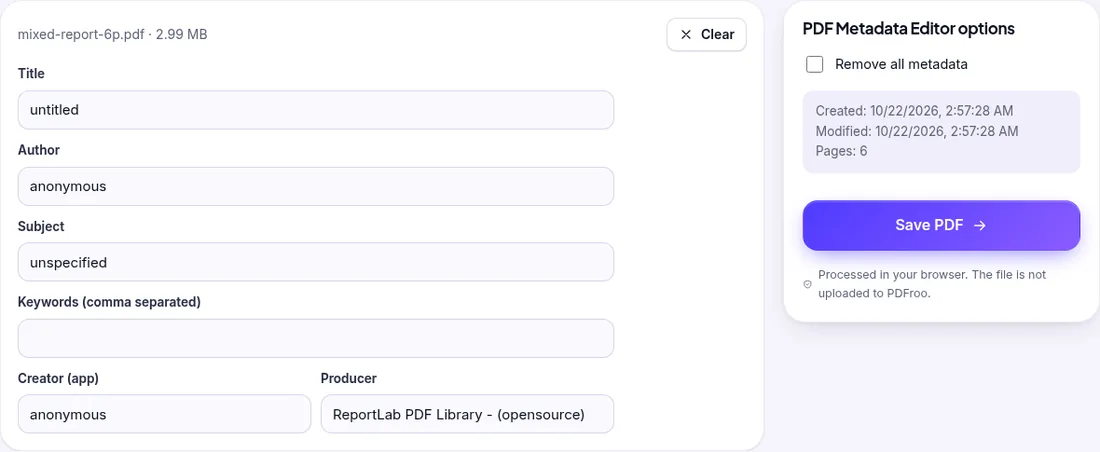
Metadata can help identify an archived file. It can also expose an old filename, username, software name, or internal author code. Use the PDF Metadata Editor to review the title, author, subject, keywords, creator, producer, and stored dates.
For a public or shared archive, use a descriptive title and appropriate author or organization name. Remove personal or unnecessary properties when privacy is more important. Do not erase useful provenance automatically: an archive may need to preserve who created the record and when. Follow the archive owner's metadata policy.
Our test file carried creator, producer and time-zone-stamped dates set by the program that made it. “Remove all metadata” in the PDF Metadata tool left no document information dictionary and no XMP at all. For archives, removing everything is usually wrong: an archive copy benefits from a correct title and date. Edit the fields instead of stripping them.
PDF/A is a family of ISO-standardized PDF formats designed for long-term preservation. It limits or controls features that may depend on external content or future software behavior. Different institutions may require PDF/A-1, PDF/A-2, PDF/A-3, PDF/A-4, or a specific conformance level.
PDFroo does not convert a normal PDF into PDF/A and does not validate PDF/A compliance. Renaming a file or changing its metadata does not make it PDF/A. When an archive, employer, court, university, or government portal requires PDF/A, use a dedicated conversion and validation tool and follow the exact version requested.
The Library of Congress describes PDF/A as a family of constrained PDF formats intended for long-term preservation. That does not mean every personal archive must use PDF/A, but it is an important requirement to check before finalizing institutional records.
Storage space matters, but an archive master should not sacrifice legibility simply to become smaller. When compression is necessary, open Compress PDF and begin with Light. This rewrites the file structure without intentionally reducing visible image quality.
Balanced or Strong compression can help with large photo or scan-based PDFs, but they re-encode images. Fine print, handwriting, seals, signatures, barcodes, and faint marks may lose detail. Keep the higher-quality master and use a smaller compressed copy for everyday access or email.
After compression, compare several pages at 100–200% zoom. Check the smallest text and the most detailed page, not only the cover.
A password can protect a confidential access copy, but it can also make a long-term record inaccessible when the password is lost. Do not encrypt the only archive copy without a documented key-management plan.
If you use Protect PDF, store the password in an approved password manager or records system and keep recovery responsibilities clear. Some institutional archives do not accept encrypted submissions, so check their rules first.
A well-prepared PDF can still be lost through device failure, accidental deletion, account lockout, or corrupted storage. Keep multiple copies in different places. A practical approach is:
Do not rely on a sync folder as your only backup. Synchronization can copy an accidental deletion or damaged file to every connected device.
Before storing the file, perform a final quality check:
A checksum is a short value calculated from a file's bytes. If the file changes, its checksum changes. Checksums help detect accidental alteration or corruption, but they do not replace backups.
PDFroo's supported tools perform document processing in your browser, so files are not uploaded to PDFroo for organization, flattening, metadata editing, compression, or protection. This is useful for private records, but storage and sharing choices after download remain your responsibility.
What PDF metadata is (title, author, creator, dates, XMP), what it can reveal, and how to view, edit or remove it in your browser. Tested, with before and after.
Find pages that repeat after combining PDFs, delete the extra copies, and check the final page count. Tested with overlapping files and a re-scan.
Turn a phone photo of your handwritten signature into a clean, see-through signature on a PDF. We tested six photos: what worked and what left a box.
Learn why black boxes and cropping may not remove PDF data, then follow a safer workflow to redact, flatten, verify, and share sensitive files.
Make a PDF easier to read on a phone by fixing orientation, cropping wide margins, splitting long files, and preserving clear searchable text.
When you print several documents double-sided, an odd page count makes the next one start on the back. Tested: inserting a blank page with Organize PDF.