

Flatten a PDF Before Sharing: Fields Only or as Image
Lock filled-in form fields so they cannot be changed, or turn pages into images. Tested on a 3-field form: what each mode keeps, removes and costs.
Removing a name, account number, address, signature, or confidential paragraph from a PDF is not the same as placing a dark rectangle over it. A document can look clean on the screen while the original text remains inside the file and can still be copied, searched, extracted, or revealed with another PDF editor.
A safer redaction workflow has three separate goals: remove or permanently replace the sensitive content, clean up hidden document information, and test the finished file before sharing it. The exact method depends on whether the private information fills an entire page or appears in only one part of a page.
A white box, black rectangle, highlight, or crop can change what a reader sees without deleting the original PDF objects. This distinction matters because PDFs may contain selectable text, images, annotations, form values, attachments, layers, and metadata that are not obvious in a normal page view.
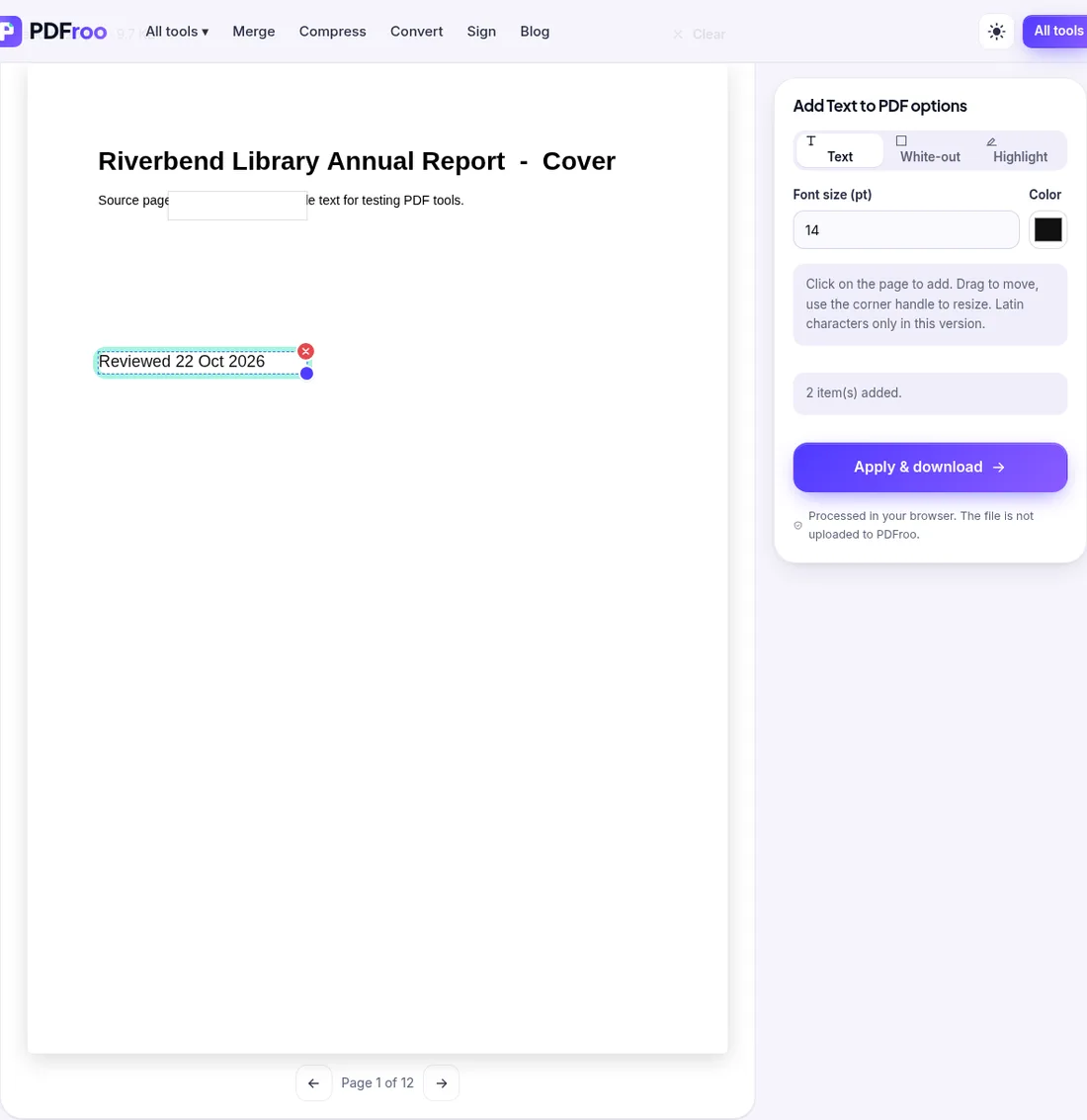
PDFroo's Add Text to PDF tool includes a White-out option. It places an opaque white rectangle over the chosen area. This is useful for visual corrections, but the text underneath remains in the PDF until the page is rebuilt. Similarly, Crop PDF changes the visible page area; it does not automatically delete everything outside the crop box.
For legal, court, medical, financial, government, or regulated documents, use a dedicated redaction tool that permanently removes selected content and can sanitize hidden information. Professional redaction workflows normally separate marking content from applying the redaction and removing hidden data.
Before changing anything, make a copy of the source file. Give the copies clear names such as:
Never overwrite the only copy. Redaction is intentionally difficult or impossible to reverse after it has been applied correctly.
If the recipient does not need any part of a page, removing the entire page is usually safer and simpler than covering several items individually. Open Delete PDF Pages, select the page, check the remaining page count, and download the new file.
PDFroo builds a new PDF containing only the pages you kept, so a deleted page is not merely hidden. If you need only a few pages from a long document, use Extract PDF Pages and create a smaller sharing copy containing only the required pages.
When only part of a page must be hidden, use this workflow for ordinary, non-regulated sharing:
Image flattening changes every page into a picture. Selectable text, links, bookmarks, and fillable fields are removed, and the file may become larger. Use this method only when that tradeoff is acceptable. It is a practical PDFroo workflow, not a substitute for professional redaction requirements.
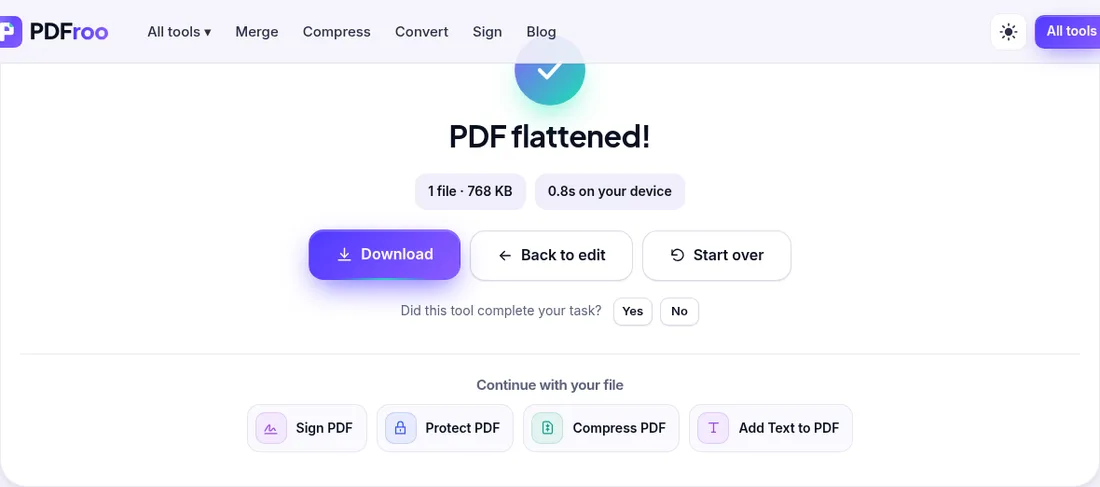
On 22 October 2026 we covered part of a line on page 1 of a fictional 12-page report with a White-out box. In the edited copy, pdftotext still extracted the covered words, exactly as warned above. After running that copy through Flatten PDF with Everything as image, pdftotext found no text at all on any page, and the covered words were gone from the rendered page. The cost: the file grew from about 6 KB to 768 KB, all 12 bookmarks were removed, and nothing could be searched any more.
Choose dedicated redaction software when a mistake could create legal, financial, workplace, or personal harm. A true redaction tool should remove the selected text or image objects and offer a way to sanitize hidden data. Follow the organization's required procedure and keep evidence of the verification if the document is part of a formal record.
Page redaction does not automatically remove the document title, author, subject, keywords, creator, producer, or stored dates. Open the final sharing copy in the PDF Metadata Editor and review each field.
Use Remove all metadata when those properties are unnecessary or reveal private information. Remember that metadata removal does not delete text, comments, form values, or content visible on the pages. It is one part of the privacy check, not a complete redaction method.
Do not rely only on appearance. Test the exact file you plan to send:
If the hidden phrase appears in search results or copied text, the file is not ready. Return to the working copy, correct the cover, rebuild the page, and test again.
Redaction removes information that the recipient should never receive. Password protection controls who can open the information that remains. These are different jobs.
For a confidential sharing copy, use Protect PDF to add an open password. Choose a long, unique password and send it through a different channel from the file. Do not place both the PDF and its password in the same email.
PDFroo processes supported PDF operations locally in your browser. Your document is not uploaded to PDFroo for editing, flattening, page deletion, metadata changes, or password protection. This reduces exposure during processing, but you are still responsible for reviewing the finished file and sharing it through an appropriate channel.
Lock filled-in form fields so they cannot be changed, or turn pages into images. Tested on a 3-field form: what each mode keeps, removes and costs.
Type on a PDF, cover areas with white boxes or highlight text. Tested: the white box hides text visually, but the covered words remain in the file.
Trim white margins or scanner edges from one page or all pages. Tested: the crop box changes what is shown, but the cut-off text is still inside the file.
Export one page or a range as JPG images at 72, 150, 220 or 300 DPI. Tested: what each resolution produced, when you get a ZIP, and how big the files are.
Plan a page range, extract non-consecutive pages into a new PDF, and check that confidential pages, bookmarks and links did not come along. Tested example.
Find the right pages to remove, delete them without touching the original, then check printed page numbers, contents links and bookmarks. Tested on a 12-page file.