

Sign a PDF With a Photo of Your Signature (No White Box)
Turn a phone photo of your handwritten signature into a clean, see-through signature on a PDF. We tested six photos: what worked and what left a box.

For many everyday documents (a lease renewal, a school form, a quote) the other side only needs to see your signature on the page. Sign PDF puts a picture of your signature exactly where you need it.
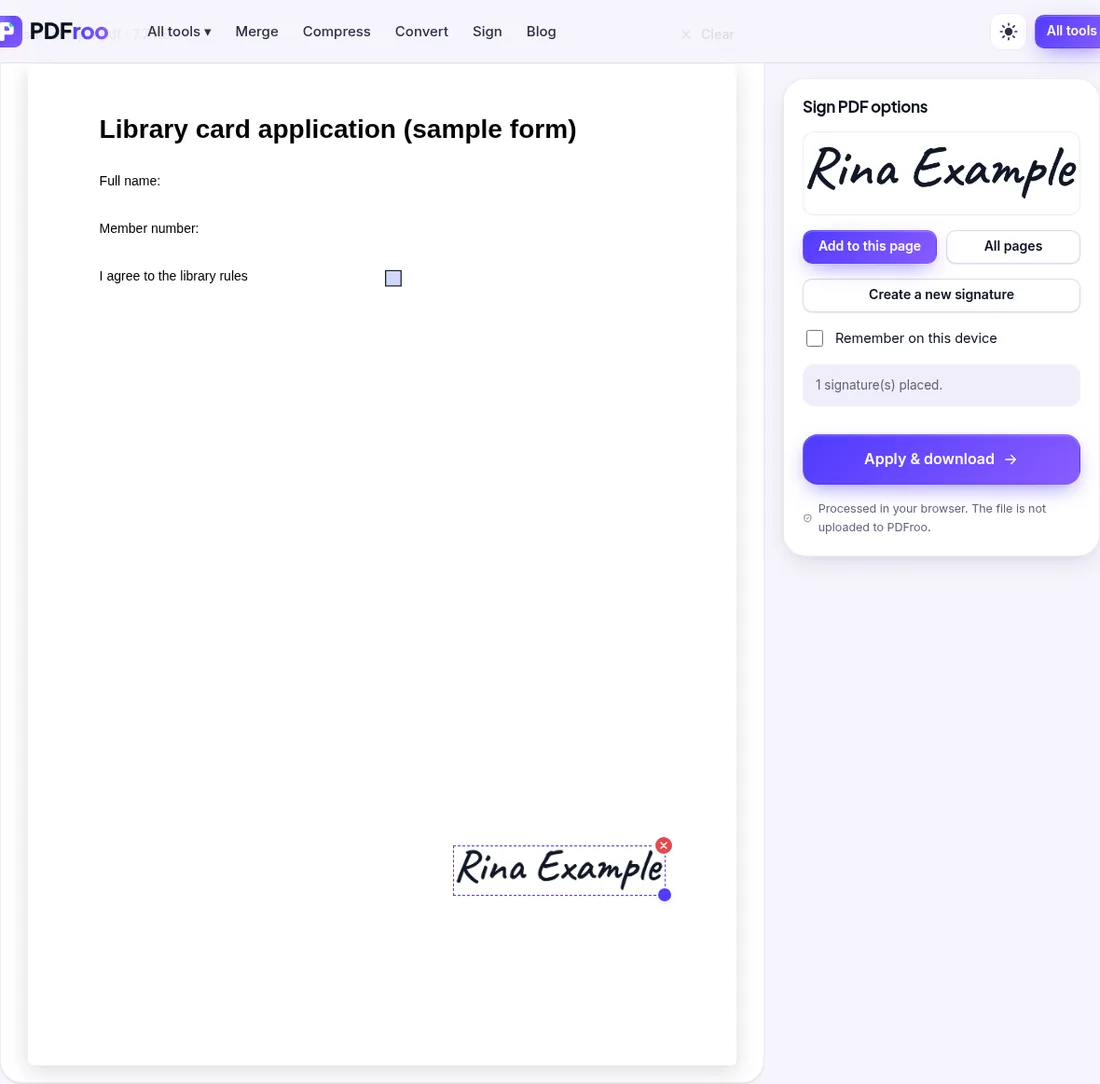
The signature is added as an image (524 × 113 px in our test) drawn on the page. It is not a cryptographic digital signature: the file has no signature field and nothing proves who signed it or that it was not changed afterwards. The form’s three fields were still present and editable after signing, so if you are signing a filled form, flatten it afterwards so the values cannot be changed under your signature.
If the recipient requires a certified digital signature (common for some legal, tax or government filings), use the system they specify.
Some contracts ask for initials on every page. On 28 October 2026 we tested this on the live site with our fictional 12-page report: Type tab, name “Rina Example”, Use signature, then All pages.
| Option | Good for | Keep in mind |
|---|---|---|
| Type | Quick, tidy initials or a name | Looks like a font, not handwriting |
| Draw | A handwritten look without a scanner | Easier with a touchscreen or stylus than a mouse |
| Upload | Your real signature | Use a photo on plain white paper; see our signature photo tests |
| Date | 22 October 2026 |
|---|---|
| Environment | Google Chrome 155 (headless) on Linux x86_64, desktop viewport 1280×900, PDFroo build of 22 October 2026 |
| Test file | Fictional 1-page form with 3 filled fields |
| Settings | Type tab, name “Rina Example”, placed on page 1 |
| Results | 1 image 524 × 113 px on page 1; 3 form fields remaining; no /Sig field |
| Network | The browser made no request that carried the file: the only requests during processing were same-origin page prefetches and local blob: URLs. |
| Re-test | 28 October 2026 on the live site: typed signature on All pages of a 12-page report (signature image on all 12 pages, a second copy on page 1 from Use signature, text and 12 bookmarks unchanged, 9.9 KB → 20 KB) |
During these runs the only POST requests went to the site’s analytics endpoints (Cloudflare Web Analytics and Google Analytics); no request went to a PDFroo processing server, and the result was produced in the browser.
We checked every output with pypdf, pdfinfo and pdftotext, and recorded every network request the page made while the file was processed. See our tool testing methodology.
Turn a phone photo of your handwritten signature into a clean, see-through signature on a PDF. We tested six photos: what worked and what left a box.
Lock filled-in form fields so they cannot be changed, or turn pages into images. Tested on a 3-field form: what each mode keeps, removes and costs.
Type on a PDF, cover areas with white boxes or highlight text. Tested: the white box hides text visually, but the covered words remain in the file.
Find pages that repeat after combining PDFs, delete the extra copies, and check the final page count. Tested with overlapping files and a re-scan.
Prepare a PDF for long-term archiving by checking text, page order, metadata, forms, compression, file naming, backups, and PDF/A requirements.
Learn why black boxes and cropping may not remove PDF data, then follow a safer workflow to redact, flatten, verify, and share sensitive files.