

How to Keep PDF Text Searchable and Selectable
Learn why PDF text becomes an image, which editing methods preserve selectable text, and how to check a PDF before sharing or archiving it.
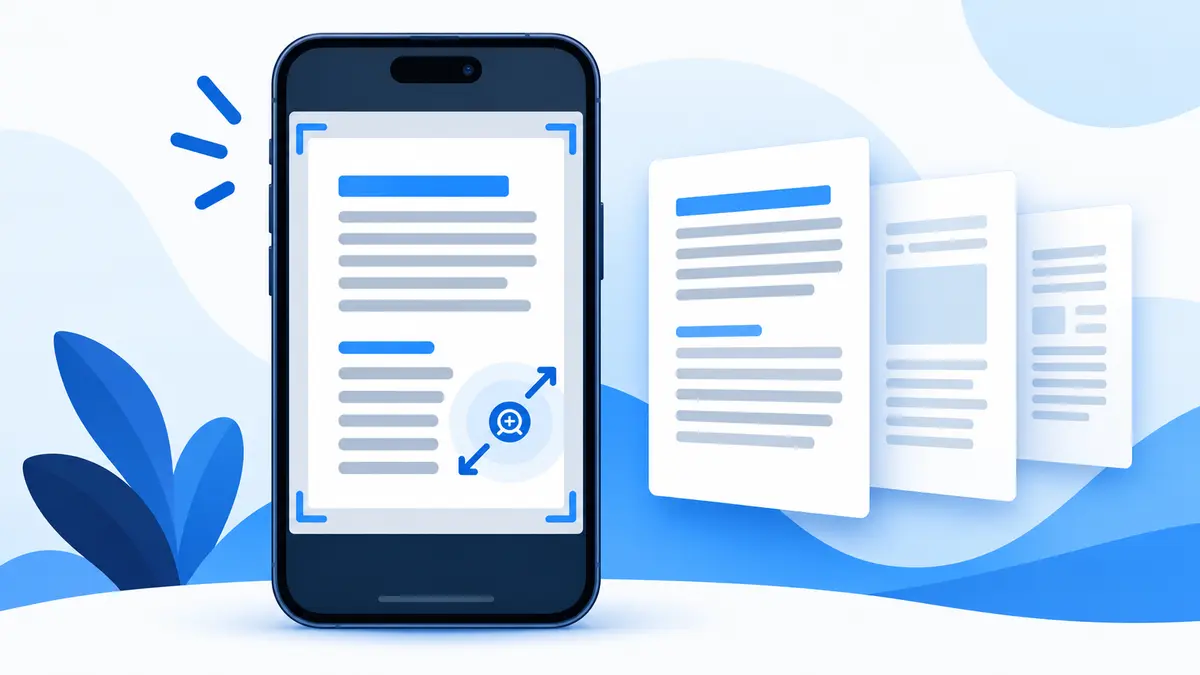
A PDF that feels comfortable on a laptop can be frustrating on a phone. Wide margins shrink the useful content, landscape pages require constant turning, and a large scan may take too long to open or move between apps. Pinch-to-zoom helps, but it does not solve every problem.
You can often improve the mobile reading experience by preparing a separate phone-friendly copy. The goal is not to redesign the document completely. It is to remove avoidable obstacles while keeping the original content accurate and readable.
Most PDFs use a fixed page layout. Text, images, tables, and margins stay in the positions chosen by the document creator. Unlike a responsive web page, a standard PDF does not automatically rearrange paragraphs to fit a narrow phone screen.
PDFroo can crop visible margins, rotate pages, split or extract sections, compress images, and convert pages to images. It does not reflow existing PDF paragraphs or rebuild a complex layout into a responsive document. If you have the original Word, Google Docs, or design file, editing and exporting that source may produce the best mobile version.
Open the document on the phone and check several pages before changing anything. Different problems require different solutions.
Keep an unchanged original before preparing the mobile copy. Give the new file a descriptive name such as guide-mobile.pdf so it is not confused with the source.
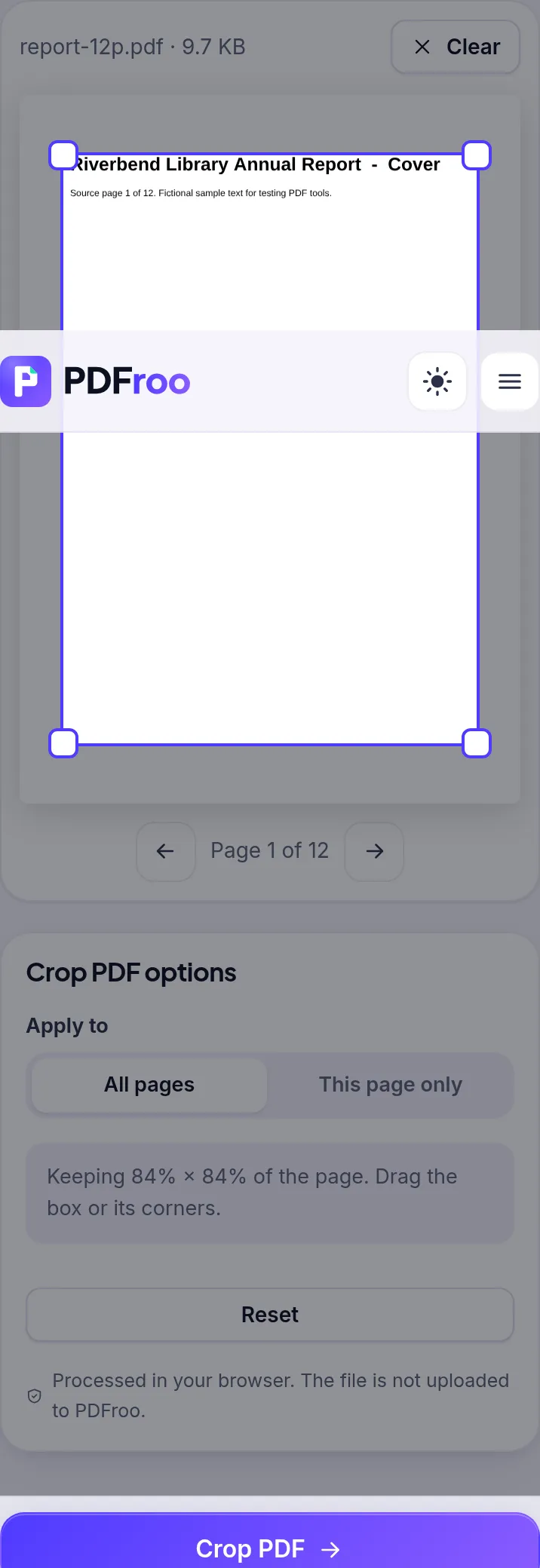
Large empty margins are one of the most common reasons PDF text appears tiny on a phone. Use Crop PDF to draw a box around the area you want readers to see. When the pages share the same layout, apply the crop to all pages. Use the single-page option when one page has a different size or position.
Leave a small comfortable border around headings, page numbers, signatures, and handwritten notes. Cropping too tightly can make the page feel cramped and may hide edge content in some viewers.
Cropping changes the visible page boundary; it does not securely delete everything outside that boundary. Hidden material may still be recoverable with a PDF editor. Never use cropping alone to conceal private information.
We ran Crop PDF in a 390 px wide mobile browser viewport (touch enabled) on 22 October 2026. The page and crop box fit the narrow screen, and the crop ran and downloaded normally. As with desktop, the cropped-off text was still in the file.
A document that switches orientation repeatedly is awkward on a phone. Open it in Rotate PDF and turn only the affected pages by 90, 180, or 270 degrees. The final PDF should display every page upright without relying on the phone's auto-rotate setting.
Rotation will not straighten a scan photographed at a slight angle. A skewed page needs to be corrected in a scanning or image-editing application before it is placed in the PDF.
A 200-page manual may be technically readable on a phone but inconvenient to navigate. Split PDF can create separate files by page ranges or equal groups. For example, you could save pages 1–20 as an introduction, 21–75 as setup instructions, and the remaining pages as reference material.
PDFroo copies pages without re-rendering them, so splitting preserves existing text and image quality. Several output files are downloaded together in a ZIP. Rename the extracted parts clearly after download so their order and purpose remain obvious.
If the reader needs only one chapter or a few reference pages, use Extract PDF Pages instead of sending the complete document.
Blank scanner pages, duplicate covers, outdated appendices, and printer instruction sheets make mobile navigation longer than necessary. Use Delete PDF Pages on a copy and keep only the material intended for that reader.
Do not remove legal notices, required instructions, references, or context simply to reduce the page count. A shorter document is helpful only when it remains complete for its intended purpose.
Searchable text is especially valuable on a small screen. Readers can find a name or section with the viewer's search function instead of swiping through every page. They may also be able to select, copy, translate, or enlarge text through assistive features.
Test the original by trying to highlight one sentence and searching for a visible word. If the page behaves like one large photograph, it is probably a scan without an OCR text layer. PDFroo preserves text that already exists but currently does not add OCR to scanned pages.
Read How to Keep PDF Text Searchable and Selectable for a detailed explanation of text-based and image-based PDFs.
A smaller PDF is easier to download over mobile data, attach to a message, or open on a device with limited memory. Use Compress PDF and begin with Light or Balanced compression. Text-based files may shrink only slightly, while photo-heavy scans can often become much smaller.
After compression, open the downloaded copy on an actual phone. Zoom in on the smallest text, diagrams, signatures, QR codes, and fine table lines. If they appear blurred, return to the original and use a lighter setting.
Avoid the optional page-to-image rebuilding mode when selectable text, links, or fillable fields must remain. Extremely small target sizes can make a PDF technically downloadable but unpleasant to read.
Sometimes a reader needs one visual page in a messaging app rather than a complete document. PDF to JPG can convert selected pages into images that are easy to preview and share.
This is not a universal replacement for PDF. A JPG does not preserve the original selectable text, links, bookmarks, or form fields. Converting every page of a long report to images can also create a cluttered group of files. Keep PDF as the main format when structure, search, printing, or document integrity matters.
Some mobile viewers display their own page counter, but printed page references and document page labels can differ. Use Add Page Numbers when readers need to discuss or return to a specific page.
Add numbers only after cropping, deleting, splitting, and reordering are complete. Preview the position to ensure the number does not cover existing content. You can skip the first page when it is a cover.
Short, descriptive file names are easier to recognize in a phone's Downloads folder. Use a name such as employee-guide-mobile.pdf or project-report-chapter-2.pdf. Avoid generic names such as document-final-new-3.pdf.
If several split files belong together, begin each name with a two-digit sequence:
This helps the files remain in the correct order when sorted alphabetically.
A desktop window can hide problems that become obvious on a narrow screen. The phone test should be treated as part of preparation, not an optional final glance.
PDFroo processes supported PDF tasks locally in your browser, so the selected files are not uploaded to PDFroo servers. The result is saved to your device.
Sharing the finished file through email, messaging, cloud storage, or another website is a separate action governed by that service's privacy practices. Remove unnecessary personal pages and review the recipient before sending sensitive documents.
The source layout may contain multiple columns or very small type. If you have the original editable document, create a new single-column version with a larger font. A PDF tool cannot safely reflow every existing design.
Split the document into useful sections or compress photo-heavy pages. Close other memory-intensive apps when opening a very large file.
The pages are probably images. A clear visual scan can still lack machine-readable text. Use a trusted OCR tool if search is required, then verify important names and numbers because OCR can make mistakes.
That is expected. Cropping mainly changes what is visible; it does not necessarily remove the hidden page data. Use compression if reducing file size is the goal.
The most useful mobile PDF is not always the smallest one. It is the version that opens reliably, shows every page upright, keeps the important content large enough to read, and allows readers to find the section they need. Preserve the original, prepare a separate mobile copy, and test the downloaded result on a real phone before sharing it.
Learn why PDF text becomes an image, which editing methods preserve selectable text, and how to check a PDF before sharing or archiving it.
Trim white margins or scanner edges from one page or all pages. Tested: the crop box changes what is shown, but the cut-off text is still inside the file.
Find pages that repeat after combining PDFs, delete the extra copies, and check the final page count. Tested with overlapping files and a re-scan.
Turn a phone photo of your handwritten signature into a clean, see-through signature on a PDF. We tested six photos: what worked and what left a box.
Prepare a PDF for long-term archiving by checking text, page order, metadata, forms, compression, file naming, backups, and PDF/A requirements.
Learn why black boxes and cropping may not remove PDF data, then follow a safer workflow to redact, flatten, verify, and share sensitive files.