

How to Redact Sensitive Information From a PDF Safely
Learn why black boxes and cropping may not remove PDF data, then follow a safer workflow to redact, flatten, verify, and share sensitive files.
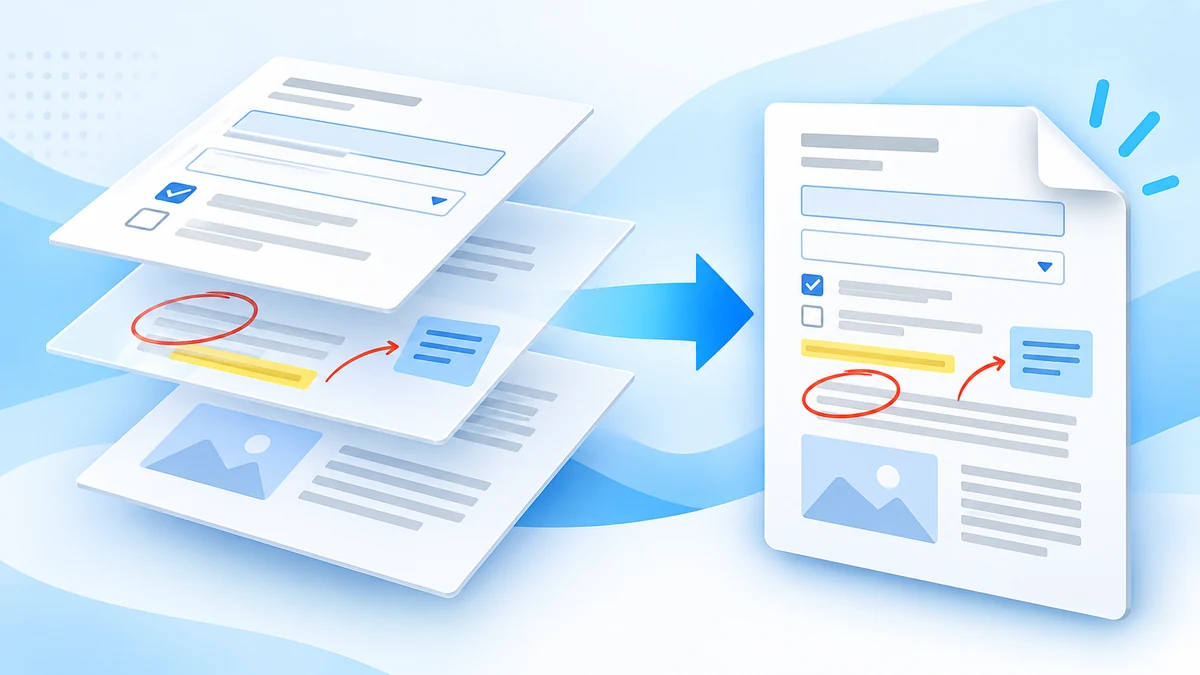
After filling a form, the values still live in editable fields. Anyone receiving the file can change them, and some viewers show them differently. Flattening fixes the values into the page. Flatten PDF has two modes, and they are very different.
| Form fields only | Everything as image | |
|---|---|---|
| Field values | Drawn into the page; fields removed | Drawn into a picture of the page |
| Text selectable / searchable | Yes | No |
| Document info (title, author) | Kept | Replaced |
| Our test file | 5.6 KB | 57 KB |
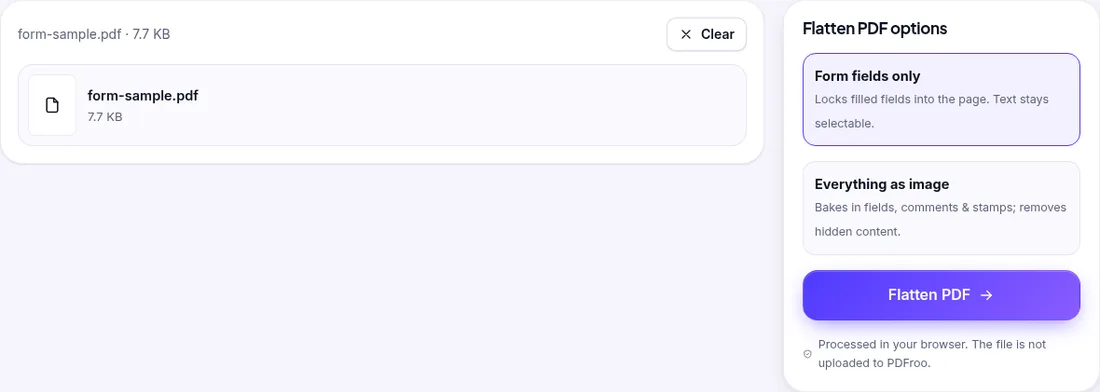
Our sample form had a name field (“Rina Example”), a member number and a ticked checkbox. The result screen said “3 form fields flattened”; pypdf found 0 fields left, and the name and number could still be selected and searched.
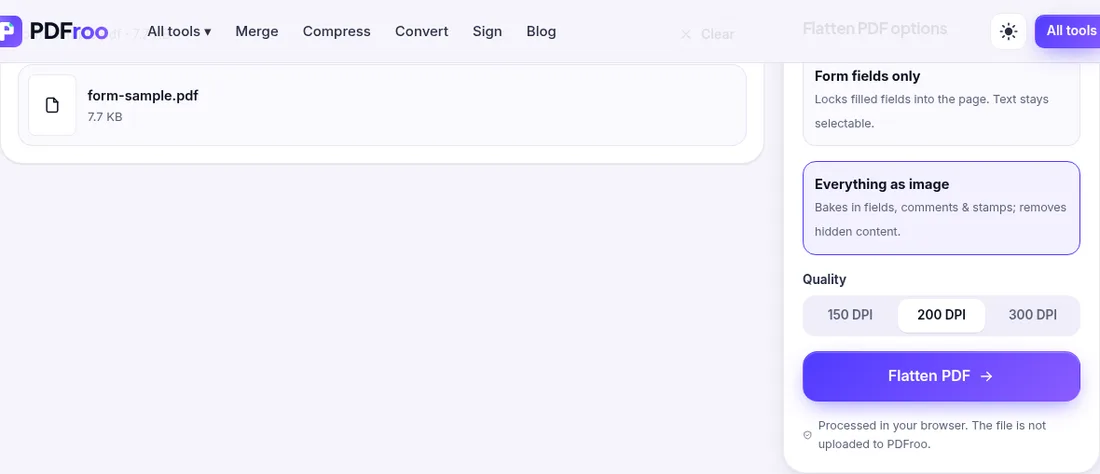
This turns each page into a JPEG. At the default 200 DPI our A4 page became one 1653 × 2338 px image with no text at all, and the original document information was replaced. Use it only when a recipient insists that nothing in the file be editable, and keep the original. It does not remove anything hidden in the picture: whatever was visible stays visible.
Do not flatten a file you still have to edit. Keep the fillable original and send a flattened copy.
If the image mode makes the file too large to send, compress it afterwards with Compress PDF.
| Date | 22 October 2026 |
|---|---|
| Environment | Google Chrome 155 (headless) on Linux x86_64, desktop viewport 1280×900, PDFroo build of 22 October 2026 |
| Test file | Fictional 1-page form with full_name, member_no and an agree checkbox (filled) |
| Results | Form fields only: 3 fields flattened, 0 remaining, text extractable, 5.6 KB. Everything as image: 1 image 1653 × 2338, no extractable text, 57 KB |
| Network | The browser made no request that carried the file: the only requests during processing were same-origin page prefetches and local blob: URLs. |
We checked every output with pypdf, pdfinfo and pdftotext, and recorded every network request the page made while the file was processed. See our tool testing methodology.
Learn why black boxes and cropping may not remove PDF data, then follow a safer workflow to redact, flatten, verify, and share sensitive files.
Learn why PDF text becomes an image, which editing methods preserve selectable text, and how to check a PDF before sharing or archiving it.
Prepare a PDF for an online application by checking page order, readability, privacy, file size, and upload requirements before final submission.
Sign a PDF in your browser: draw, type or upload a signature and place it on the page. Tested, with what this kind of signature is and isn’t.
Add an open password with AES-256 encryption and optional print, copy and edit restrictions. Tested and verified, with the limits of permission flags explained.
What PDF metadata is (title, author, creator, dates, XMP), what it can reveal, and how to view, edit or remove it in your browser. Tested, with before and after.