

Rotate Scanned PDF Pages Online: Fix Sideways Pages
Turn individual pages or all pages of a PDF 90° at a time. Tested on a 12-page file: only the chosen page changed, bookmarks kept and nothing re-compressed.
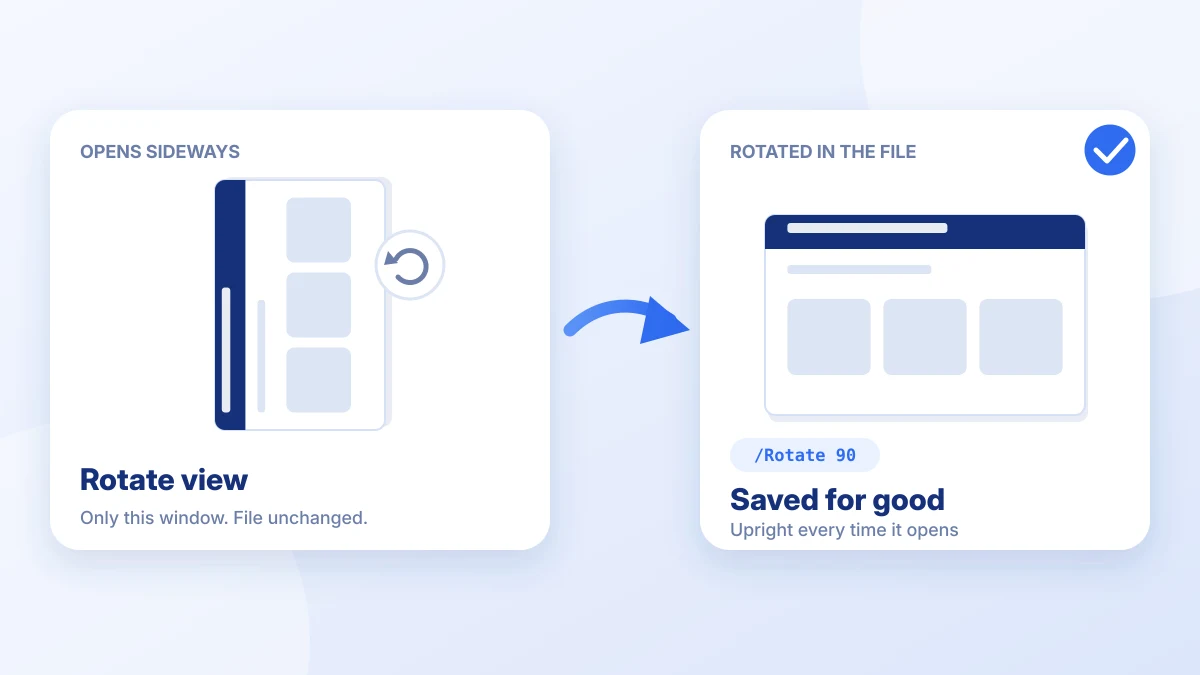
To rotate a PDF and save it permanently, change the rotation in the file, not in the viewer. Open the PDF in Rotate PDF, press All right or All left (or the rotate button on individual pages), then press Apply & download and use the downloaded copy, named …-rotated.pdf, from now on. The rotate button in a PDF viewer such as Chrome’s only turns the pages on your screen: in our test the file stayed exactly as it was and opened sideways again next time.
This guide is about making a rotation stick for a whole document, such as a slide deck or spreadsheet export that always opens sideways. If only a few pages of a scan are turned the wrong way, see Rotate Scanned PDF Pages Online.
PDF viewers have a rotate view button. It changes how the pages are drawn in that window and nothing else. Nothing is written back to the PDF, so the next time the file opens, in that viewer or on someone else’s computer, it is sideways again.
We checked this in Google Chrome’s built-in PDF viewer with a fictional 6-slide deck whose slides were stored sideways on portrait pages. Chrome’s toolbar has one rotate button, which turns the view counterclockwise; three presses turned the slides upright on screen.
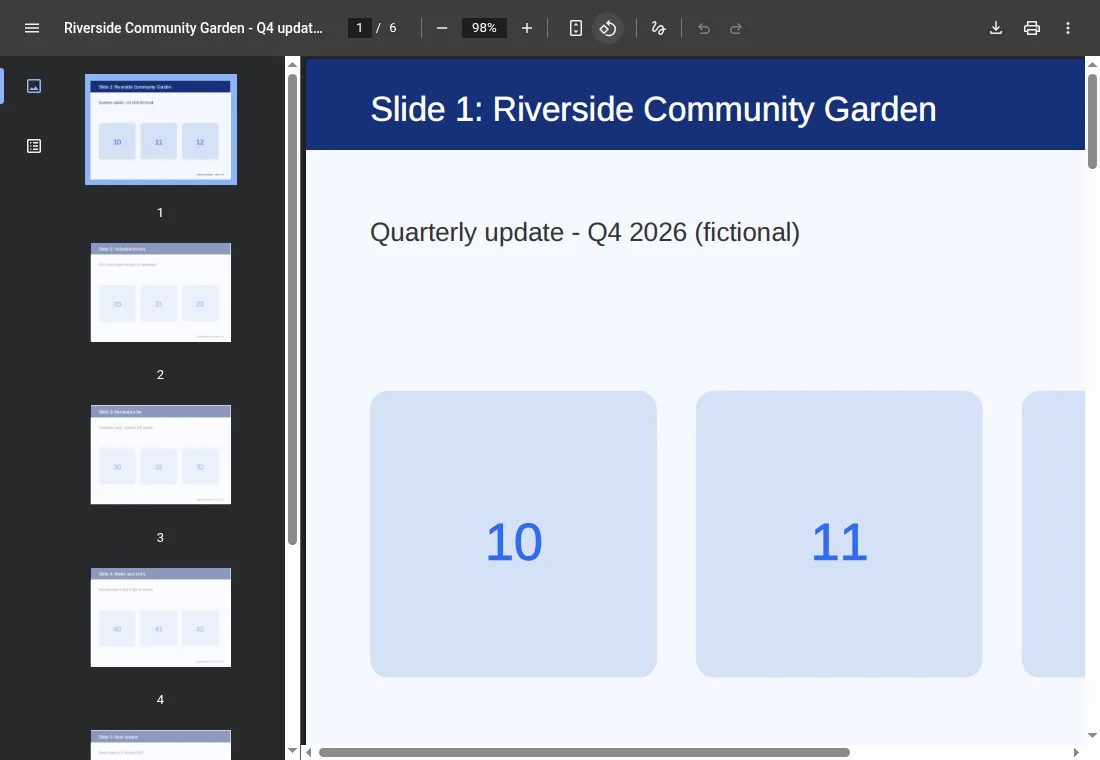
Then we checked the file itself:
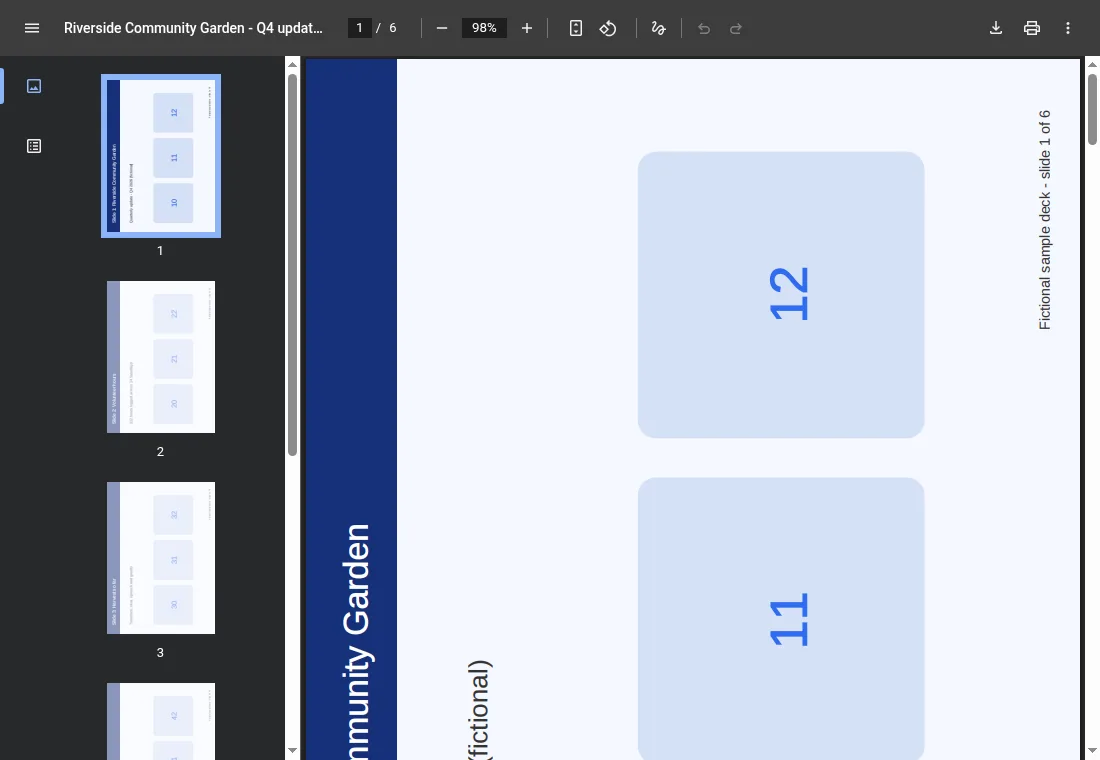
Adobe’s help page on changing PDF orientation describes Acrobat Reader’s View → Rotate View the same way: it is not an actual change to the document. We did not test Reader, Edge, Preview or phone viewers ourselves, so the safe rule is the one below: rotate the file, then reopen the downloaded copy to check.
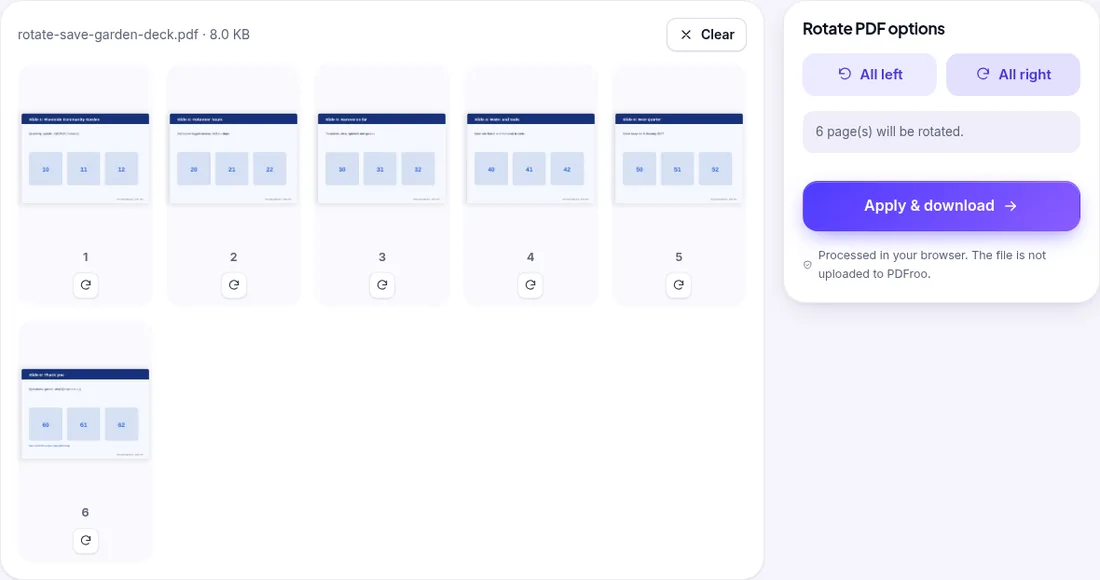
Go to Rotate PDF and choose the PDF. Every page appears as a thumbnail, shown the way a viewer shows it now. Our deck’s six slides all lay on their side, with the top of each slide pointing left. Apply & download stays greyed out until you rotate something.
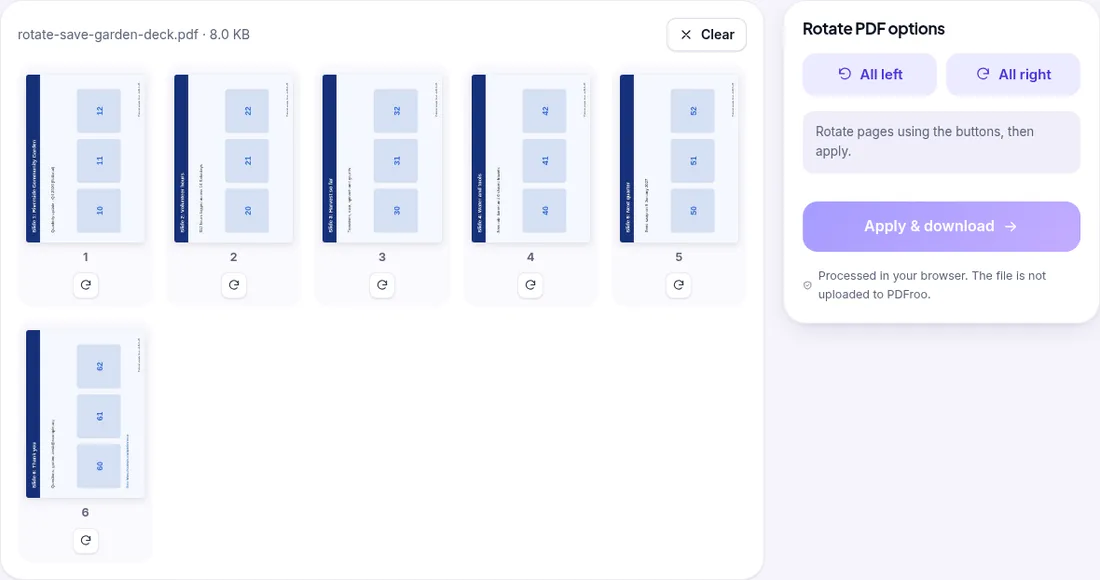
When the whole document is the wrong way, use the buttons in the options panel instead of turning pages one by one:
After one press of All right, the thumbnails showed all six slides upright and the panel read 6 page(s) will be rotated.
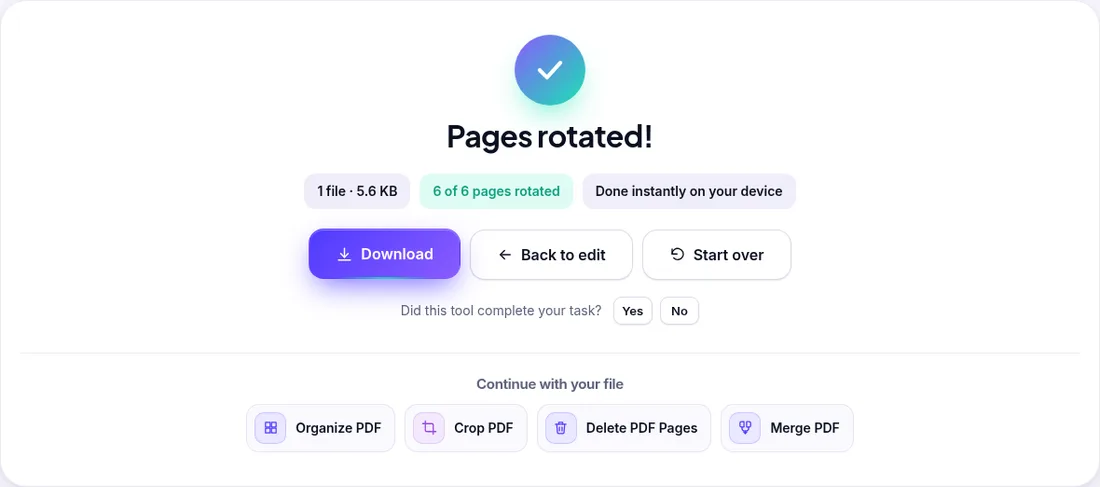
Press Apply & download. Our result panel read 6 of 6 pages rotated, and the file was ready in under a tenth of a second. The download keeps the original name with -rotated added. The original file is not changed, so delete or rename the old copy if you do not want to send the sideways version by mistake.
Close the file and open the downloaded copy again, in the viewer you normally use or in a new browser tab. It should open upright without you touching the rotate button. Two more checks if you want to be sure:
/Rotate. On a computer with poppler-utils, pdfinfo -f 1 -l 6 file.pdf prints it as “Page 1 rot: 90”. Our original deck had 0 on every page; the download had 90 on every page.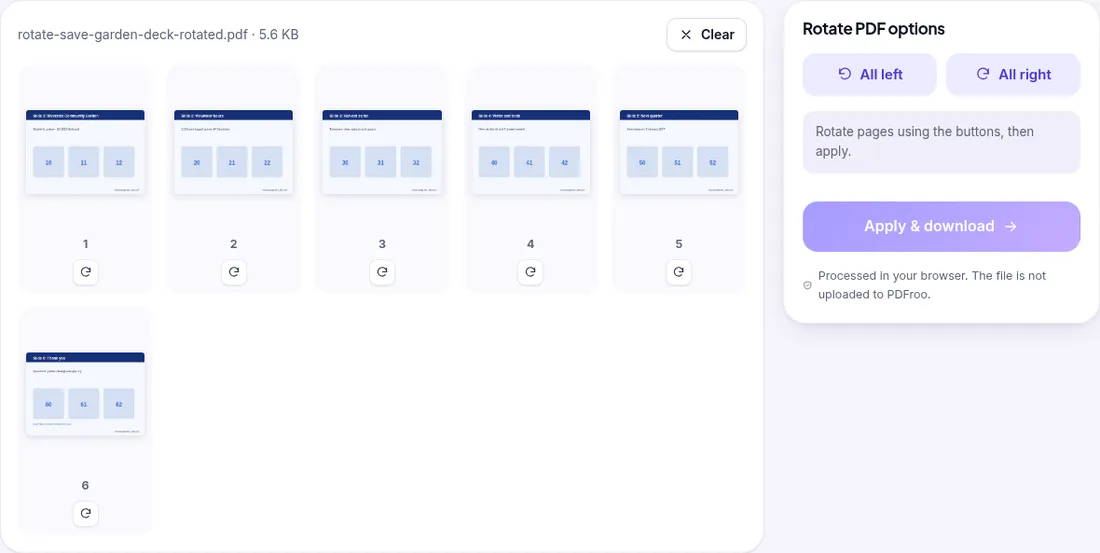
Rotate PDF changes only the rotation value of each page you turned. In our deck test:
A spreadsheet export often mixes upright pages with a wide table printed sideways. Our fictional 4-page budget report had two portrait text pages and two sideways tables. We pressed the rotate button under pages 3 and 4 once each, and the panel read 2 page(s) will be rotated. The download had rotation values 0, 0, 90, 90, the two text pages were untouched, and all 4 bookmarks were kept.
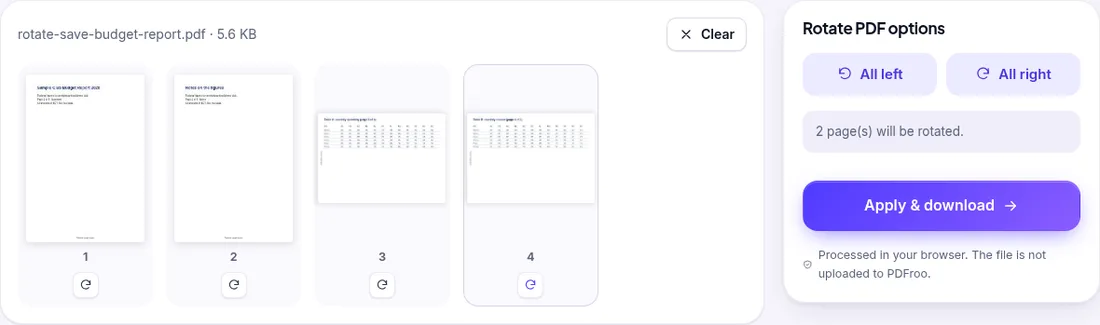
The rotate button under a page always turns it 90° clockwise. If a page needs a counterclockwise turn, press it three times. For more on fixing individual sideways pages, see Rotate Scanned PDF Pages Online.
New turns are added to whatever rotation the file already has. We loaded our corrected deck (rotation 90) and pressed All right twice more. The download had 270 on every page, which means upside down compared with our fix. So if you open a file that was “fixed” before, look at the thumbnails and turn it only as much as it still needs.
Four presses of All right add up to a full turn. When we did that, the hint went back to “Rotate pages using the buttons, then apply.” and Apply & download stayed greyed out, because nothing would change.
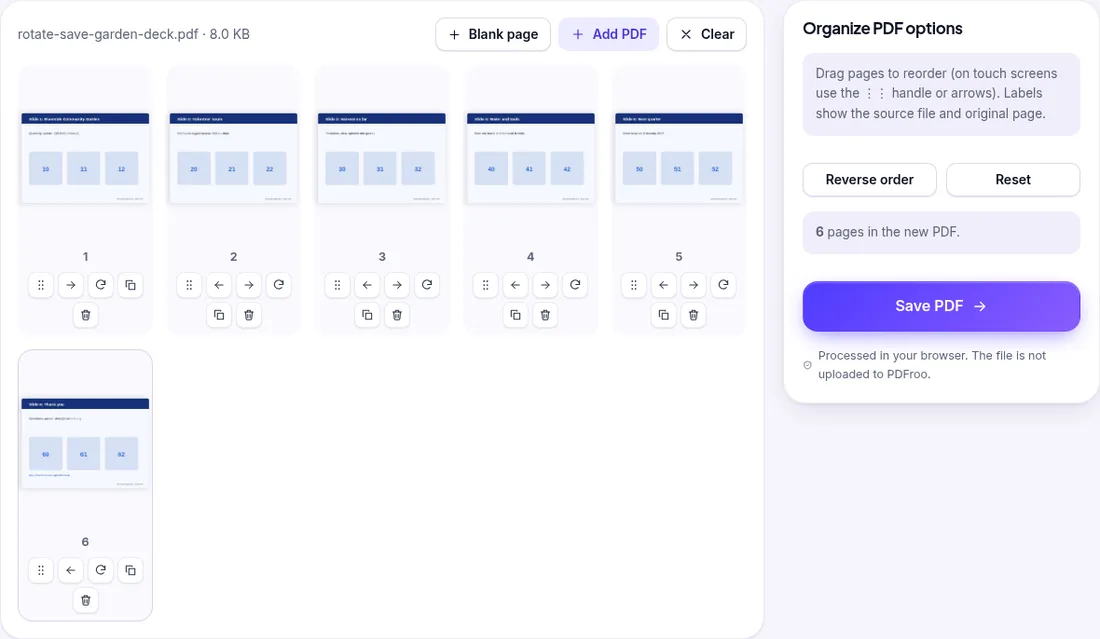
Organize PDF can also rotate pages, and it is the better choice when you need to reorder, duplicate or delete pages at the same time. For rotation alone, Rotate PDF keeps more of the file. We rotated each of the deck’s six pages in Organize PDF (it has no All left or All right buttons, so that took one press per page). The download had rotation 90 on every page and the same page content, and the web link was kept. However, Organize PDF builds a new file, so all 6 bookmarks were gone and the document title was removed.
| Run | Input | Action | Output | Checked in the downloaded file |
|---|---|---|---|---|
| Chrome PDF viewer | 6-slide deck, 8,242 bytes | Rotate view (3 presses), then the viewer’s Download | Identical copy, 8,242 bytes | Same checksum as the original; rotation 0 on all pages; sideways again when reopened |
| Rotate PDF: whole deck | Same deck, 6 bookmarks, 1 link | All right once | 5,783 bytes, 43–85 ms over two runs | Rotation 90 on all 6 pages; content and text identical; 6 bookmarks, link and title kept |
| Rotate PDF: reopen | The rotated deck | Load again; All right ×4; then All right ×2 | ×4: nothing to apply; ×2: 5,789 bytes, 66 ms | Upright on reload; after ×2 the rotation was 270 on all pages (90 + 180) |
| Rotate PDF: two pages | 4-page report, 5,695 bytes, 4 bookmarks | Rotate pages 3 and 4 once each | 4,075 bytes, 64 ms | Rotation 0, 0, 90, 90; text identical; 4 bookmarks kept |
| Organize PDF: whole deck | The original deck | Rotate each of the 6 pages once | 5,524 bytes, 70 ms | Rotation 90 on all pages; content identical; link kept; bookmarks 6 → 0; title removed |
| Date | 14 November 2026 |
|---|---|
| Environment | Google Chrome 156 (headless) on Linux x86_64, desktop viewport 1280×900, the live tools at pdfroo.com/rotate-pdf and pdfroo.com/organize-pdf. The viewer check used the same Chrome 156 in a normal window, because the built-in PDF viewer does not run headless. |
| Test files | A fictional 6-slide community-garden update with landscape slides stored sideways on A4 portrait pages (6 bookmarks, 1 web link, a document title), and a fictional 4-page club budget report with two sideways tables (4 bookmarks). Both made by a script as text PDFs. |
| Steps | Rotate the view in Chrome’s PDF viewer and download from it; in Rotate PDF: All right on the deck, then reload the result, All right ×4 and ×2; rotate pages 3 and 4 of the report; in Organize PDF: rotate each deck page once |
| Results | See the table above. Rotation values, page content, extracted text, bookmarks, links and the title were checked in every download with pypdf, pdfinfo and pdftotext. |
| Network | We logged every request the browser made after the files were chosen. None of them carried the PDFs, their contents or their file names. The requests to PDFroo were GETs for the site’s own scripts. The only request that sent data was one Google Analytics batch of usage events (event names tool_view, upload_start, process_complete and download, with the tool name rotate-pdf, file and output counts and timings; 266–268 bytes). Despite its name, upload_start only records that a file was chosen. We checked that the body contained no file names or text from the files. No request went to a PDFroo processing server; the rotated file was produced in the browser. |
See our tool testing methodology for how we test PDFroo tools in general.
You most likely rotated the view in your PDF viewer. That only changes the screen. In our Chrome test the file was unchanged and opened sideways again. Rotate the file itself with Rotate PDF and use the downloaded copy.
Close and reopen the downloaded copy: it should open upright. You can also load it into Rotate PDF again (it showed upright with nothing to apply in our test) or check its rotation value with pdfinfo.
Yes. All right turns every page 90° clockwise and All left turns every page 90° counterclockwise. Press twice for 180°.
No. Only each page’s rotation value changes. In our test the page content was byte-for-byte the same, text stayed selectable, and bookmarks, links and the title were kept.
No. The file is rotated in your browser. In our network log no request carried the file, its name or its text. The page does send Google Analytics usage events, such as the tool name and file counts.
Turn individual pages or all pages of a PDF 90° at a time. Tested on a 12-page file: only the chosen page changed, bookmarks kept and nothing re-compressed.
Copy one PDF page as many times as you need with Organize PDF’s Duplicate button. Tested on a 3-page form and a 1-page handout on the live tool.
Type on a PDF, cover areas with white boxes or highlight text. Tested: the white box hides text visually, but the covered words remain in the file.
Trim white margins or scanner edges from one page or all pages. Tested: the crop box changes what is shown, but the cut-off text is still inside the file.
Choose a page number format, skip a cover page, set a start number and check landscape or merged pages, with a tested walkthrough of PDFroo.
Mark a PDF as DRAFT or add a logo with PDFroo: opacity, angle, tiling, page ranges, what a watermark can and cannot do, and how to check the result.