

Convert PDF Pages to JPG: Choosing DPI and Selecting Pages
Export one page or a range as JPG images at 72, 150, 220 or 300 DPI. Tested: what each resolution produced, when you get a ZIP, and how big the files are.
Scanners and phone apps often save one page sideways or upside down. Rotate PDF shows thumbnails of every page so you can turn just the ones that are wrong.
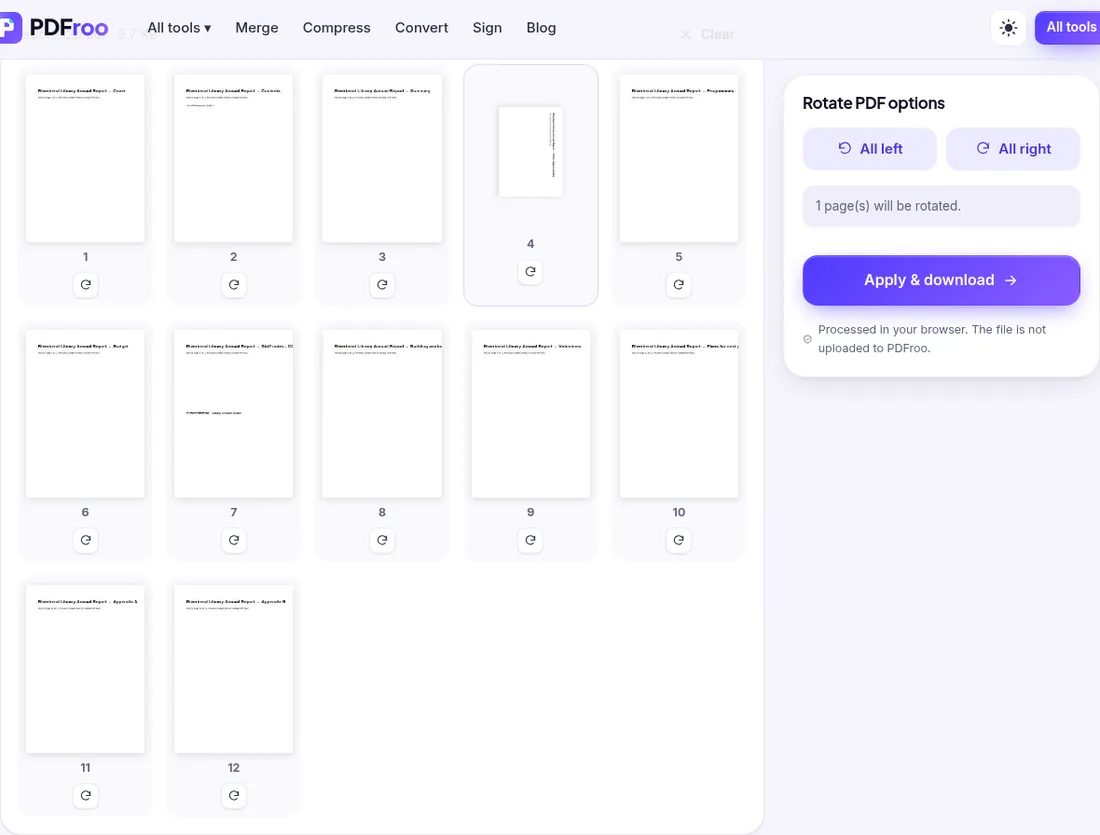
Rotation is stored as a flag on each page. In our test the output had /Rotate 90 on page 4 and 0 on the other eleven. The page content is not redrawn or re-compressed, so there is no quality loss and scans keep their text layer. All 12 bookmarks still worked.
On 28 October 2026 we ran two more checks on the live site, using a fictional 6-page report made of portrait A4 pages (3.13 MB, mostly photos) and the 12-page output from our first test.
When a whole scan came out sideways, you do not need to click every thumbnail. We pressed All right once and applied. The result screen reported “6 of 6 pages rotated”, and every page in the output had /Rotate 90. The file size barely moved (3.13 MB in, 2.99 MB reported on the result screen), which matches what you would expect when only a page flag changes and the photos are not re-encoded. Use All left instead if the tops of the pages point to the right.
We opened our earlier output, where page 4 already had /Rotate 90, and rotated page 4 once more. The new file had /Rotate 180 on page 4 and 0 everywhere else, so the rotation adds to what is already in the file rather than starting from zero. This is useful when a file has been “fixed” once in the wrong direction: one more quarter-turn in the same direction, or one in the other direction, gets it upright without starting over from the original scan. All 12 bookmarks were still in the output.
| Date | 22 October 2026 |
|---|---|
| Environment | Google Chrome 155 (headless) on Linux x86_64, desktop viewport 1280×900, PDFroo build of 22 October 2026 |
| Test file | Fictional 12-page report with 12 bookmarks |
| Settings | Page 4 rotated once |
| Results | /Rotate 90 on page 4 only; bookmarks kept |
| Network | The browser made no request that carried the file: the only requests during processing were same-origin page prefetches and local blob: URLs. |
| Re-test | 28 October 2026 on the live site: All right on a 6-page file (6 of 6 pages /Rotate 90); page 4 of a file that already had /Rotate 90 turned again (/Rotate 180, bookmarks kept) |
During these runs the only POST requests went to the site’s analytics endpoints (Cloudflare Web Analytics and Google Analytics); no request went to a PDFroo processing server, and the result was produced in the browser.
We checked every output with pypdf, pdfinfo and pdftotext, and recorded every network request the page made while the file was processed. See our tool testing methodology.
Export one page or a range as JPG images at 72, 150, 220 or 300 DPI. Tested: what each resolution produced, when you get a ZIP, and how big the files are.
Trim white margins or scanner edges from one page or all pages. Tested: the crop box changes what is shown, but the cut-off text is still inside the file.
Merge several scans into one PDF, then fix upside-down pages, remove blank backs and check mixed page sizes. A tested two-step workflow, with its limits.
Find pages that repeat after combining PDFs, delete the extra copies, and check the final page count. Tested with overlapping files and a re-scan.
Turn a phone photo of your handwritten signature into a clean, see-through signature on a PDF. We tested six photos: what worked and what left a box.
Prepare a PDF for long-term archiving by checking text, page order, metadata, forms, compression, file naming, backups, and PDF/A requirements.