

How to Organize PDF Pages and Fix the Order After Merging
Put a document packet in the right order with page thumbnails: move, rotate, duplicate or delete pages, fix a merged file, and check what changes.
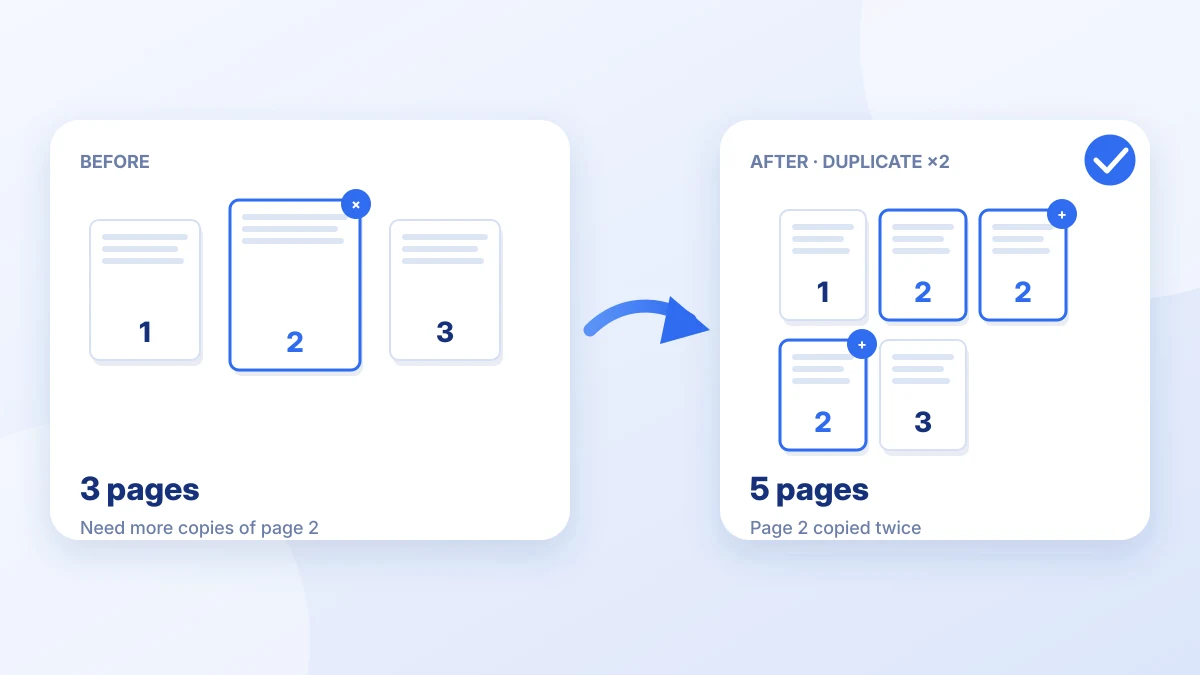
To duplicate a PDF page multiple times, open the file in Organize PDF, hover (or tap) the page you want to copy, and press the Duplicate page button under its thumbnail. Each press inserts one identical copy straight after that page. In our test a 3-page workshop application became 5 pages after we duplicated the Extra Attendee sheet twice, and a 1-page handout became 4 identical copies after three presses — both finished in under a quarter of a second on the live tool.
This guide is only about copying pages you already have. For putting pages in order after a merge, see How to Organize PDF Pages; for removing accidental repeats after merging, see How to Remove Duplicate Pages After Merging; for inserting empty sheets for double-sided printing, see Prepare a PDF for Double-Sided Printing.
Duplicate page copies the page content as it is. It does not create a fillable form field clone beyond what was already on the page, and it does not change other pages.
Go to Organize PDF and add your file. Wait for the thumbnails. With a single file the labels under the thumbnails are simply 1, 2, 3… — the page’s position in that file. The options panel shows the page count; ours read 3 pages in the new PDF.
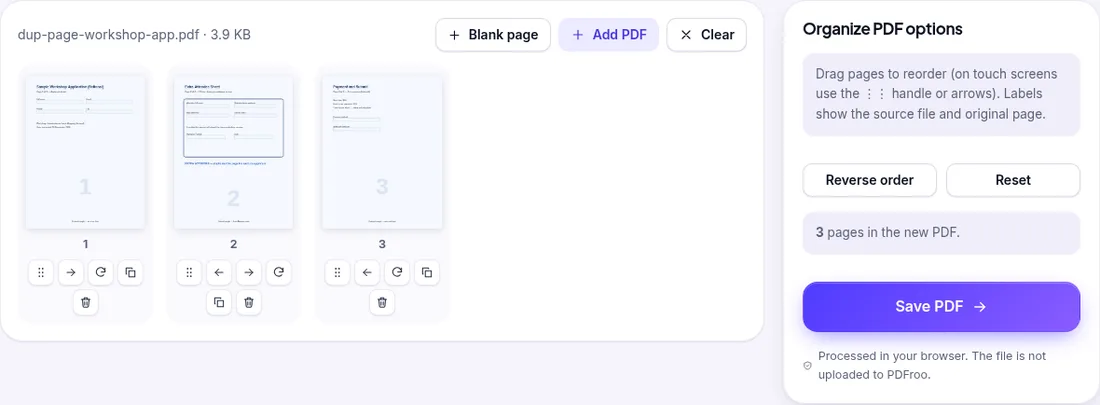
In our test we pressed Duplicate twice on page 2. After the first press the grid showed 1, 2, 2, 3 (4 pages). After the second it showed 1, 2, 2, 2, 3 and the counter read 5 pages in the new PDF.
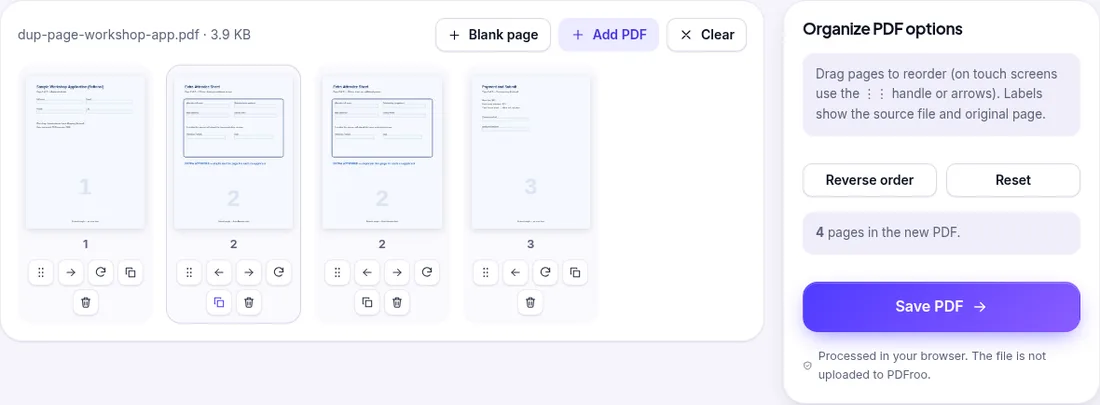
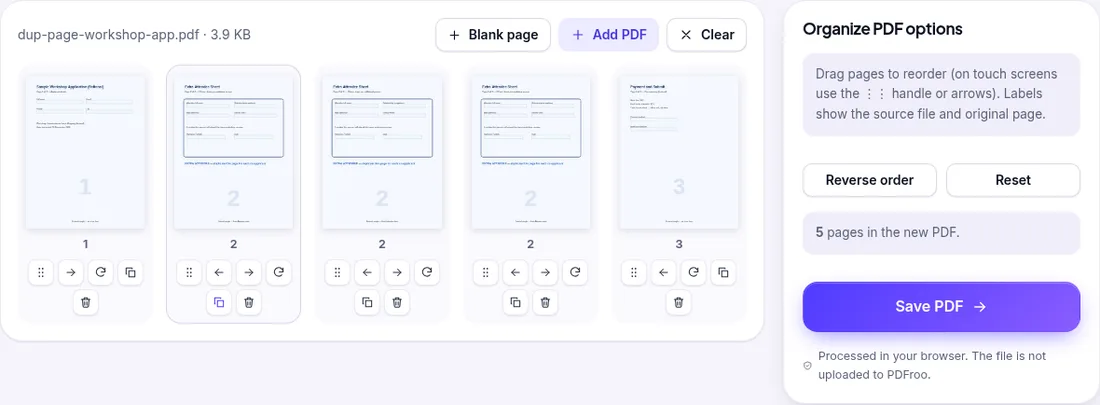
The labels stay tied to the source page, so every copy of page 2 still reads 2. That is useful for checking you copied the right sheet; it is not a printed page number.
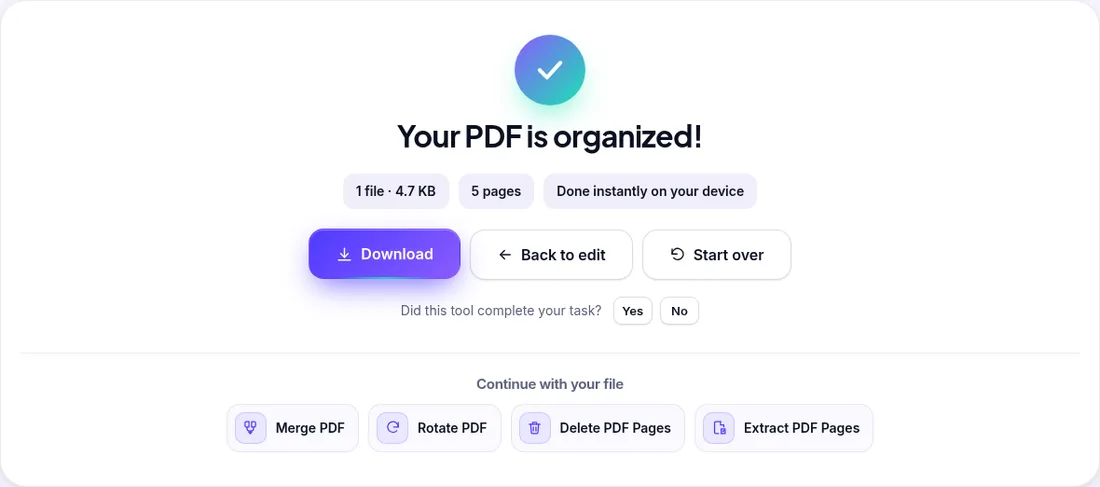
Press Save PDF and download the file (named after the original, plus -organized.pdf). Open it and confirm the page count and that each duplicated page shows the same content. Our result panel read 5 pages, and the download was 4.7 KB.
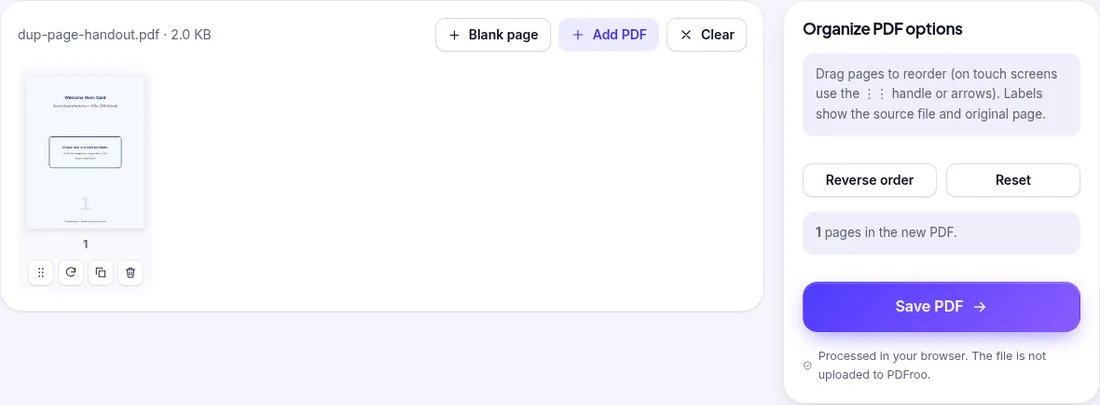
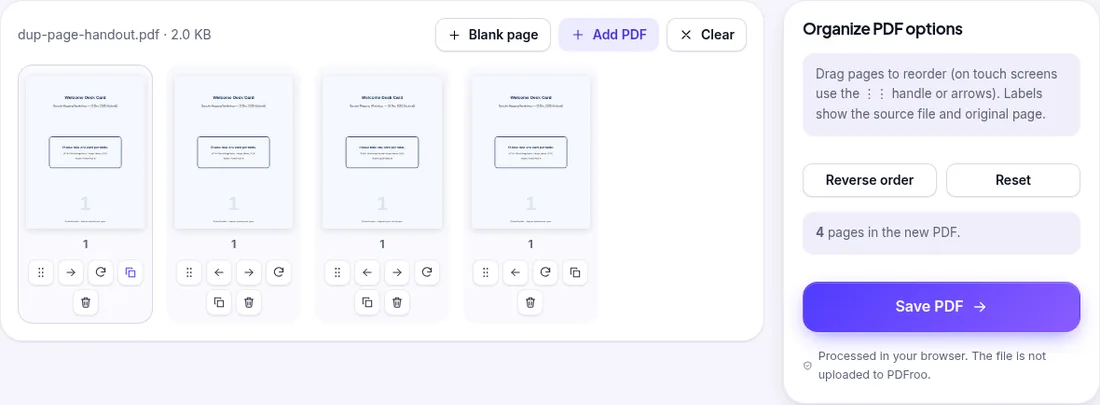
For a single-page handout we pressed Duplicate three times on page 1. The grid went from 1 to 1, 1, 1, 1 and the counter read 4 pages in the new PDF. The saved file had four identical copies of the desk card (3.7 KB).
If you also need page numbers on the final packet, add them after you finish duplicating — see How to Add Page Numbers to a PDF.
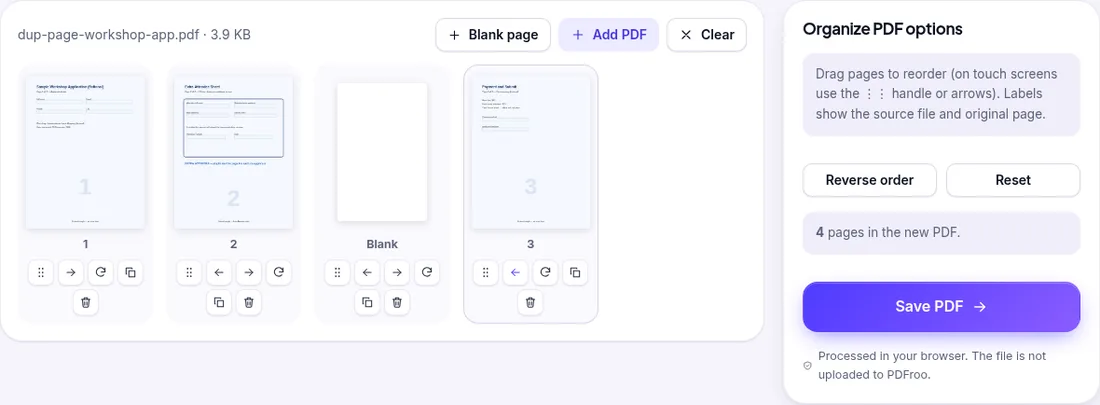
Above the grid, Blank page adds an empty page at the end. When saved it takes the size of the page just before it in the new file (in our check, Letter 612×792 pt, matching the Extra Attendee sheet we placed it after). Move it with the arrows or by dragging. Use blanks when you need an empty sheet for double-sided printing or a chapter break — that use case is covered in Prepare a PDF for Double-Sided Printing. Duplicate page is for copying content you already have; Blank page is for an empty sheet.
| Run | Input | Actions | Output | Checked with a script |
|---|---|---|---|---|
| Organize PDF — workshop | 3-page fictional application (3.9 KB): applicant, Extra Attendee, payment | Duplicate page 2 twice | 5 pages, 4.7 KB, 49 ms | Page order app → extra → extra → extra → pay; each Extra Attendee page matched the source text |
| Organize PDF — handout | 1-page fictional desk card (2.1 KB) | Duplicate page 1 three times | 4 pages, 3.7 KB, 245 ms | All four pages contained “Welcome Desk Card” |
| Organize PDF — blank check | Same 3-page application | Blank page, move left once | 4 pages, 2.9 KB, 49 ms | Order app → extra → blank → pay; blank size 612×792 pt (Letter), no text |
Every Save finished in under a quarter of a second after pressing the button (49–245 ms). The duplicated pages kept the same page size as the source page.
| Date | 7 November 2026 |
|---|---|
| Environment | Google Chrome 156 (headless) on Linux x86_64, desktop viewport 1280×900, the live tool at pdfroo.com/organize-pdf |
| Test files | A fictional 3-page workshop application (applicant details, Extra Attendee sheet, payment page) and a fictional 1-page desk-card handout. Both made by a script as text PDFs (Letter size). |
| Steps | Upload the application, Duplicate page 2 twice, Save; upload the handout, Duplicate page 1 three times, Save; on a fresh upload of the application, add one Blank page, move it left once, Save |
| Results | See the table above. Page counts, page order and page content were checked in the downloaded files with pypdf and pdftotext. Blank page size was read from the page media box. |
| Network | We logged every request the browser made after the files were chosen. None of them contained the PDFs, their contents or their file names. The requests to PDFroo were GETs for the site’s own scripts (including the PDF.js viewer). The only requests that sent data were Google Analytics usage events (tool name organize-pdf, file count, timings); each body was about 115 bytes, and we checked that none contained the file names or any text from the files. No request went to a PDFroo processing server — the result was produced in the browser. |
See our tool testing methodology for how we test PDFroo tools in general.
Straight after the page you duplicated. Move it afterward if you need it elsewhere.
Yes. Press Duplicate page once for each extra copy. There is no “copy N times” field.
No. Duplicate copies an existing page’s content. Blank page adds an empty sheet at the end.
Organize PDF rebuilds the PDF from page content. Our samples were ordinary text pages, not AcroForm fields; if your file uses interactive form fields, check the download in a PDF viewer.
No. This tool runs in your browser, so the file is processed on your own device and is not sent to a PDFroo server.
Put a document packet in the right order with page thumbnails: move, rotate, duplicate or delete pages, fix a merged file, and check what changes.
Choose a page number format, skip a cover page, set a start number and check landscape or merged pages, with a tested walkthrough of PDFroo.
Rotating in a PDF viewer is temporary. Save the turn in the file with Rotate PDF, then check it stuck. Tested on a sideways slide deck and a budget report.
Find pages that repeat after combining PDFs, delete the extra copies, and check the final page count. Tested with overlapping files and a re-scan.
When you print several documents double-sided, an odd page count makes the next one start on the back. Tested: inserting a blank page with Organize PDF.
Type on a PDF, cover areas with white boxes or highlight text. Tested: the white box hides text visually, but the covered words remain in the file.