

Are Online PDF Tools Safe? How to Check Before You Upload
What happens to files in online PDF tools, the real risks, and three ways to check whether a tool processes files locally – plus the test we run on PDFroo.
Every PDF carries information you don’t see on the page: who or what created it, which software made it, and when. Usually that’s harmless. But it can reveal a name, an internal department code, or the fact that a “new” document was really made three years ago. Here’s what we found in real PDFs, how to check your own, and what removing metadata does and doesn’t do.
We opened the official IRS Form W-9 in PDFroo’s PDF Metadata Editor:
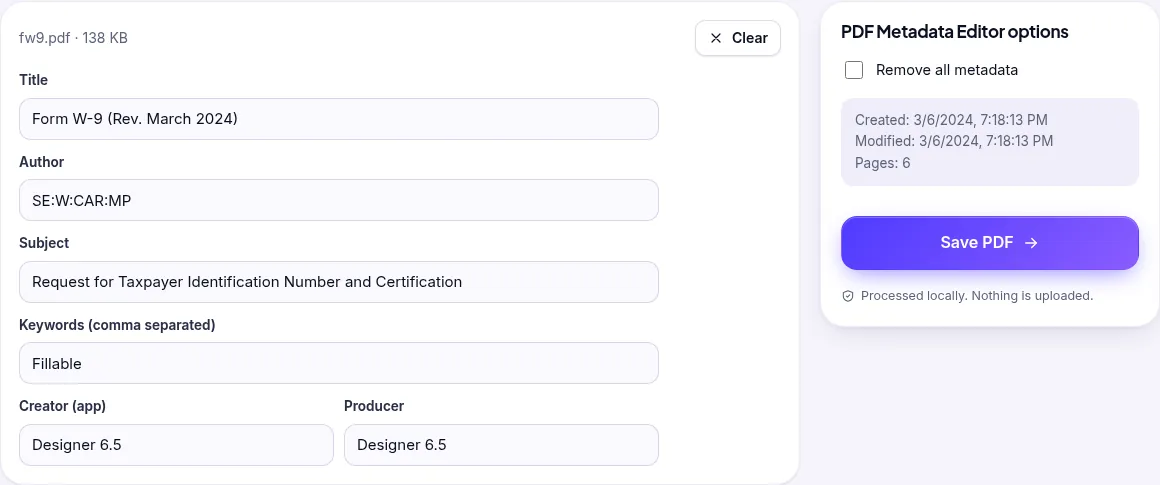
The Author field says SE:W:CAR:MP, an internal office code rather than a person. Creator and Producer both say Designer 6.5, the authoring software. The creation date is March 6, 2024. IRS Publication 15 lists its author as W:CAR:MP:FP and names two tools by version: Antenna House XSL Formatter and iText 2.1.7. On a file you create yourself, the Author field is often your full name, taken from your Word or Acrobat settings.
A PDF can store metadata in two places:
That duplication matters. In our testing, we found that editing only the visible fields can leave the old values in the XMP copy. That was a bug in our own editor: it updated the visible title, but the XMP still said “Form W-9 (Rev. March 2024)”. We fixed it on October 8, 2026, and PDFroo now removes the stale XMP block whenever you save edited metadata.
We verified the result with Poppler’s pdfinfo. Before, the W-9 reported a title, subject, keywords, author, creator, producer, both dates, and “Metadata Stream: yes”. After “Remove all metadata”, it reported none of those fields and “Metadata Stream: no”. All 23 form fields were still present, and nothing on the pages changed. Publication 15 gave the same result.
Before                              After
Title:    Form W-9 (Rev. March 2024)  (none)
Author:   SE:W:CAR:MP                 (none)
Creator:  Designer 6.5                (none)
Producer: Designer 6.5                (none)
Metadata Stream: yes Metadata Stream: noMetadata is only one kind of hidden information. In our tests, these stayed after stripping metadata, as expected:
We tested two common shortcuts, and neither removes text from the file:
To make text truly unrecoverable, use a dedicated redaction tool, or flatten the pages to images with Flatten PDF’s image mode after covering the text. Image mode removes the text layer entirely, so the result is no longer searchable or selectable. Check the output before you share it.
JPG photos often contain EXIF data such as camera model, date and sometimes GPS location. During our testing, we found that PDFroo’s JPG to PDF embedded the original photo bytes, including a test photo’s GPS coordinates (40°41′21″N 74°02′40″W). We fixed that on October 8, 2026. JPG to PDF now strips EXIF and XMP from photos before embedding them, and our re-test found zero EXIF entries. Resize Image also outputs photos without EXIF.
Want to know what happens to files in online tools generally? Read Are online PDF tools safe?
All tests ran on October 8, 2026, using PDFroo’s production code in Google Chrome on a desktop computer, with public IRS files and test photos we created ourselves (the GPS coordinates are fake). Outputs were inspected with Poppler (pdfinfo) and PyMuPDF. The white-out and crop results come from extracting text from the saved files.
What happens to files in online PDF tools, the real risks, and three ways to check whether a tool processes files locally – plus the test we run on PDFroo.
Why merged PDFs come out as page 1, 10, 11, 2…, how to sort files correctly before merging, and how to fix the page order in an already merged PDF – tested step by step.