

Rotate Scanned PDF Pages Online: Fix Sideways Pages
Turn individual pages or all pages of a PDF 90° at a time. Tested on a 12-page file: only the chosen page changed, bookmarks kept and nothing re-compressed.
You may need a page as an image to post it, put it in a slide, or upload it to a site that only accepts pictures. PDF to JPG renders pages in your browser and saves each as an image.
| Resolution | A4 page becomes | Good for |
|---|---|---|
| 72 DPI | about 595 × 842 px | Thumbnails, previews |
| 150 DPI (default) | about 1240 × 1754 px | Screens, social posts, slides |
| 220 DPI | about 1819 × 2573 px | Sharp reading on high-density screens |
| 300 DPI | 2480 × 3507 px (measured) | Printing |
3-4; leave it empty for all pages.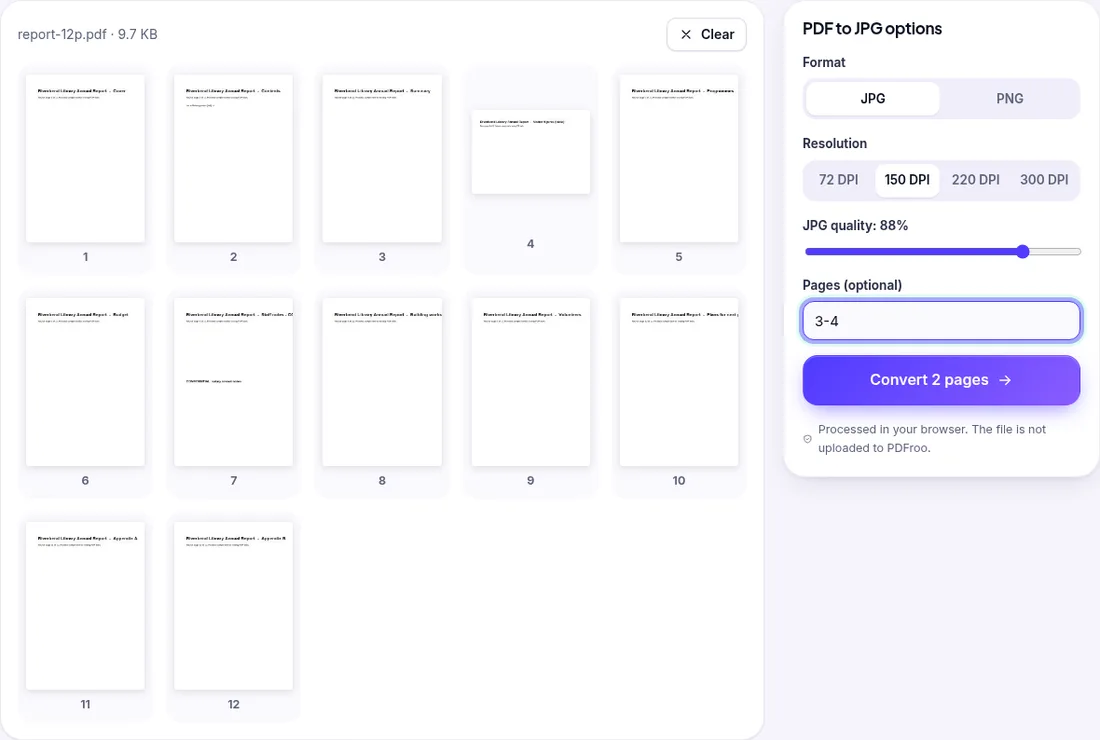
report-12p-page-03.jpg.Text in the image is just pixels: it cannot be searched or selected. Keep the PDF if anyone needs to copy text from it. Text-only pages compress well; pages with photos will be much larger, especially at 300 DPI.
Pixel size is simply page size in inches × DPI. An A4 page is 8.27 × 11.69 inches; US Letter is 8.5 × 11 inches. So a Letter page at 150 DPI is 1275 × 1650 px and at 300 DPI 2550 × 3300 px. If a site asks for an image “at least 1000 px wide”, 150 DPI is enough for either paper size; if it asks for a maximum, pick the lowest DPI that still clears the minimum, because every step up roughly doubles the pixel count and the file size grows with it.
| JPG | PNG | |
|---|---|---|
| Best for | Scans and pages with photos | Pages of crisp text, charts and line art |
| File size | Small; the Quality slider (default 88%) trades size for detail | Larger on photos, often fine on plain text |
| Accepted by upload forms | Almost everywhere | Usually, but check “JPG only” forms |
If text edges look fuzzy or have faint halos in a JPG, either raise the quality to 90–95% or switch to PNG. Lowering quality below about 75% saves space but makes small text blotchy.
1,3,5-7 in Pages instead of converting everything and deleting images afterwards.An image shows everything visible on the page, including names, addresses or account numbers in headers and footers. Crop or cover them first: Crop PDF trims margins, and our guide to redacting sensitive information safely explains why a black box drawn on top of a PDF is not enough, although on an exported image the covered pixels really are gone.
| Date | 22 October 2026 |
|---|---|
| Environment | Google Chrome 155 (headless) on Linux x86_64, desktop viewport 1280×900, PDFroo build of 22 October 2026 |
| Test file | Fictional 12-page A4 report with text and a landscape page |
| Runs | Pages 3–4 at 150 DPI; page 3 at 300 DPI |
| Results | ZIP of 2 JPGs (40 KB, 45 KB); single 2480 × 3507 JPG (110 KB) |
| Network | The browser made no request that carried the file: the only requests during processing were same-origin page prefetches and local blob: URLs. |
We checked every output with pypdf, pdfinfo and pdftotext, and recorded every network request the page made while the file was processed. See our tool testing methodology.
Turn individual pages or all pages of a PDF 90° at a time. Tested on a 12-page file: only the chosen page changed, bookmarks kept and nothing re-compressed.
Learn why black boxes and cropping may not remove PDF data, then follow a safer workflow to redact, flatten, verify, and share sensitive files.
Learn why PDF text becomes an image, which editing methods preserve selectable text, and how to check a PDF before sharing or archiving it.
Fit a photo under 20, 50, 100 or 200 KB or to an exact pixel width. Tested with a 4 MP phone photo, PNG screenshots and a batch, with real sizes and pitfalls.
Turn several photos into one PDF with the right page size and order. Tested with three images: what A4, Letter and Fit image do, and why the PDF is as big as the photos.
Find pages that repeat after combining PDFs, delete the extra copies, and check the final page count. Tested with overlapping files and a re-scan.