

Flatten a PDF Before Sharing: Fields Only or as Image
Lock filled-in form fields so they cannot be changed, or turn pages into images. Tested on a 3-field form: what each mode keeps, removes and costs.
An online application can fail for a very ordinary reason: the document is complete, but the PDF is too large, sideways, out of order, password-protected, or difficult to read. The safest approach is to prepare one final copy specifically for the portal instead of uploading the first file you find on your device.
This guide explains how to build, review, and reduce an application PDF without accidentally removing an important page or making small text unreadable. It works for job, school, membership, grant, visa, and other document-upload workflows, but the instructions shown by the receiving organization must always come first.
Start on the application page and write down its exact requirements. Look for the accepted file type, maximum file size, page limit, required page order, naming rules, and whether several documents must be uploaded separately. A portal that asks for separate identity and qualification files may reject one combined packet even when the combined PDF looks perfect.
Keep the original documents unchanged in a separate folder. Make edits to copies so you can restart if a page is deleted, cropped too closely, or compressed too strongly.
More pages do not automatically make an application stronger. Unrequested bank statements, identification pages, blank scanner pages, and old versions can expose private details and make the file harder to review. Create a short checklist from the portal instructions, then match every required item to one source file.
If a long PDF contains only a few relevant pages, use Extract PDF Pages to save those pages as a new file. If the unwanted pages are already inside your working copy, Delete PDF Pages can remove them. Review the page count after either action.
When the portal asks for one file, arrange the packet in the same sequence as its checklist. A practical order might be application form, cover letter, résumé, certificates, references, and supporting evidence. The correct sequence depends on the receiving organization, not on a universal template.
Use Merge PDF when each source file is already complete and only the file order needs to change. PDFroo copies the pages without re-rendering them, so normal selectable text and image quality are preserved. If individual pages from several files must be mixed, duplicated, removed, or rearranged, use Organize PDF instead.
After saving, scroll from the first page to the last. Check transitions between documents because missing back pages and duplicated separator pages are easiest to notice there.
A reviewer should not have to rotate a screen to read one certificate. Open the working copy in Rotate PDF and correct only the sideways or upside-down pages. Rotation changes the page orientation in 90-degree steps; it does not straighten a photograph that was captured at a slight angle.
Dark scanner edges or very wide empty margins can make the useful content appear smaller. Crop PDF can trim the visible page area, but leave a comfortable border around signatures, stamps, reference numbers, and handwritten notes. Cropping too closely can hide information during printing or review.
Fill every required field before combining or flattening the document. If a form is not fillable, Add Text to PDF can place visible text on the page. This is useful for simple additions, but it does not convert the document into a true interactive form. Zoom in and confirm that each entry fits inside its intended box.
For a document that permits an electronic signature, use Sign PDF to draw, type, or add a signature image. A visual signature is not automatically the same as a regulated digital certificate. If the organization requires a particular signing method, follow that requirement instead.
Some filled forms look correct on your device but display blank values in a different PDF viewer. Flatten PDF can merge completed fields into the page so their appearance is fixed.
Choose Form fields only when you want the original document text to remain searchable and selectable. Choose Everything as image only when comments, stamps, drawings, or covered content must be baked into the visible page. Image mode removes searchable text, links, bookmarks, and interactive fields, and it can make the file larger. Open the result and compare every answer with the original before continuing.
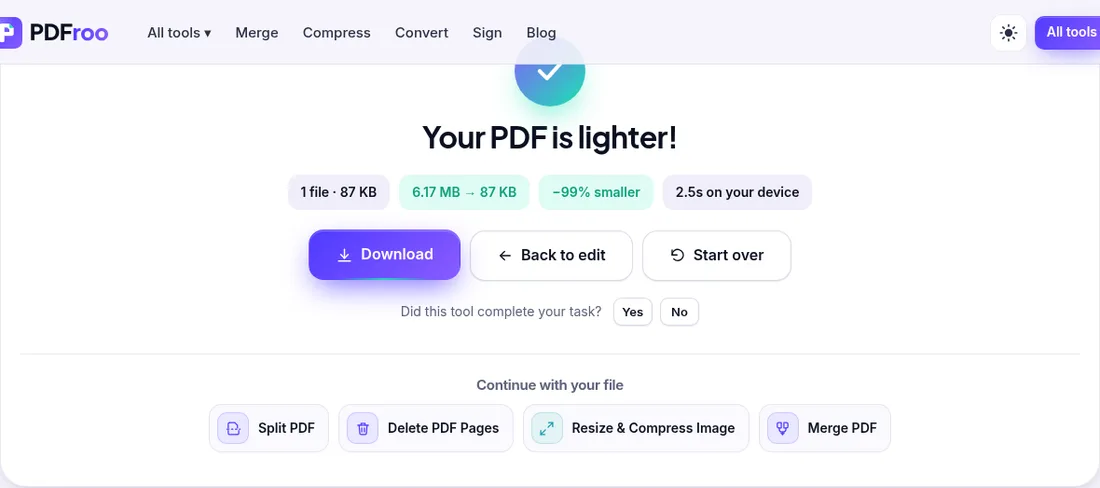
If the PDF exceeds the portal limit, first remove pages that are not required. Then try Compress PDF. Light compression is appropriate for a document that is only slightly over the limit. Balanced compression is often a better starting point for scans or photo-heavy files. Strong compression should be followed by a careful readability check.
For a stated limit such as 500 KB or 2 MB, Target size mode can aim for that value. Keep the option that converts whole pages to images disabled when selectable text, links, or form structure must remain. If the target cannot be reached while keeping the document legible, reduce the page count or ask the receiving organization whether a larger file is accepted instead of sending blurred evidence.
A file name should help both you and the reviewer identify the document. Use a short format such as FirstName-LastName-Application.pdf or the naming pattern specified by the portal. Avoid names such as final-final-2.pdf, emojis, and unnecessary special characters. Do not put sensitive numbers in the file name unless the organization explicitly asks for them.
Review both visible content and hidden document details. Look for unrelated addresses, account numbers, comments, tracked notes, and pages left from another application. You can inspect title, author, subject, and keyword fields with PDF Metadata Editor. Remove or correct metadata when it is inaccurate or unnecessarily personal.
PDFroo processes supported document tasks locally in your browser, so the file is not uploaded to PDFroo servers during these operations. The final submission is different: when you choose the prepared PDF in an application portal, that portal receives the file under its own privacy policy. Confirm the web address and organization before uploading sensitive documents.
If possible, upload early enough to handle an error message. Do not wait until the final minute to discover that the portal counts megabytes differently, rejects encrypted files, or requires separate uploads.
Remove unnecessary pages, then compress a copy. Check the size after download because the portal evaluates the saved file, not the original shown in the tool.
Confirm that the extension is really .pdf, the file opens normally, and it is not password-protected. Rename it with simple letters, numbers, and hyphens. If the portal lists a page limit, check that as well.
Return to the completed original, flatten the form fields, and inspect the new copy before uploading again. Never overwrite the only filled version until the flattened result has been checked.
Go back to the uncompressed working copy and choose a lighter setting. A file that meets the size limit but cannot be read is not submission-ready.
A submission-ready PDF contains the requested pages, follows the required order, opens without an unexpected password, stays below the size limit, and remains readable on every page. Save the final copy separately from the originals, perform one last review, and upload only after the document on your device matches the portal's instructions.
Lock filled-in form fields so they cannot be changed, or turn pages into images. Tested on a 3-field form: what each mode keeps, removes and costs.
Fit a photo under 20, 50, 100 or 200 KB or to an exact pixel width. Tested with a 4 MP phone photo, PNG screenshots and a batch, with real sizes and pitfalls.
Get a PDF under a 100 KB or 200 KB upload limit. We squeezed a 6.17 MB scan to 184 KB, 87 KB and 42 KB and kept the text; here is how, and what to do if it won’t fit.
Find pages that repeat after combining PDFs, delete the extra copies, and check the final page count. Tested with overlapping files and a re-scan.
Turn a phone photo of your handwritten signature into a clean, see-through signature on a PDF. We tested six photos: what worked and what left a box.
Prepare a PDF for long-term archiving by checking text, page order, metadata, forms, compression, file naming, backups, and PDF/A requirements.