

Resize an Image in KB Before Uploading (20 KB to 200 KB)
Fit a photo under 20, 50, 100 or 200 KB or to an exact pixel width. Tested with a 4 MP phone photo, PNG screenshots and a batch, with real sizes.
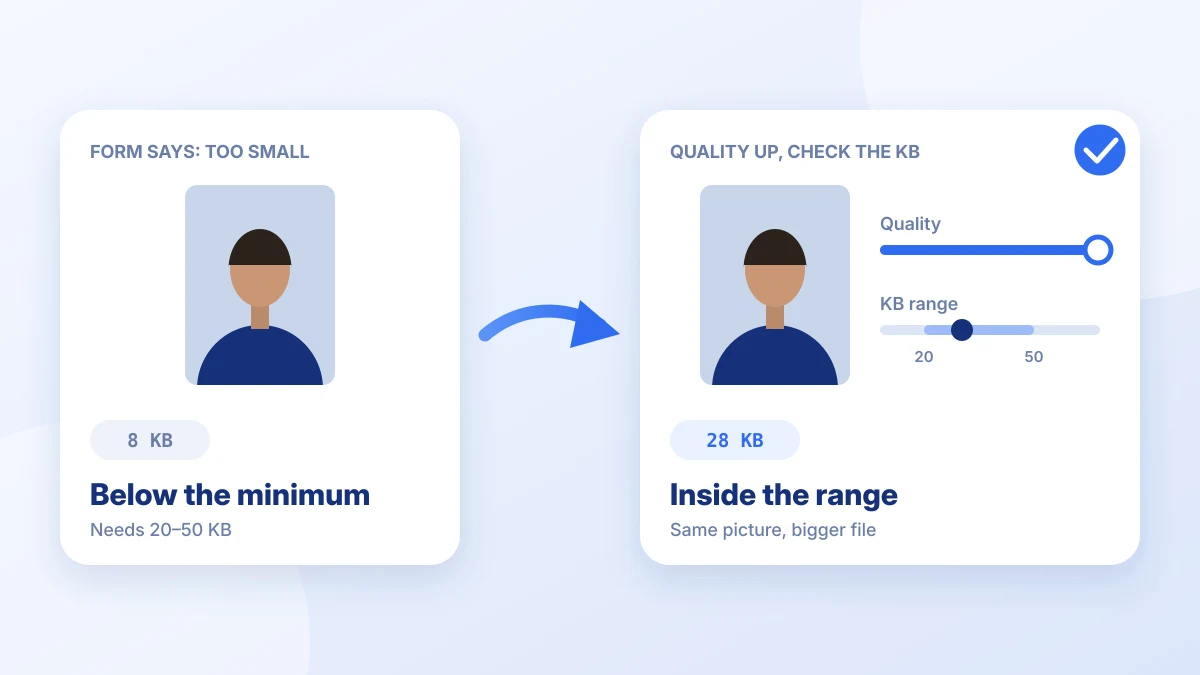
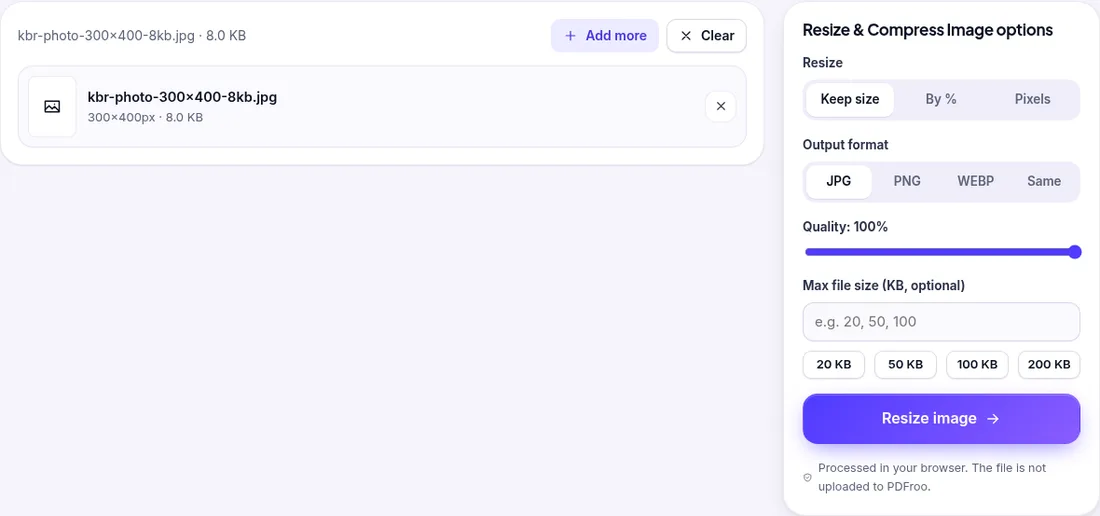
If a form rejects your photo because it is too small in KB, for example “photo must be 20–50 KB” and yours is 8 KB, open it in Resize & Compress Image and raise the file size with one of two settings: move Quality up to 100%, or choose Pixels and type a larger width. Then check the size of the downloaded file before you upload it. Do not type the minimum into Max file size: that box only makes files smaller. In our test it turned an 8 KB photo into a 7.5 KB one.
This guide is about going up to a minimum or into a KB range. If your photo is too big and has to get under a limit such as 50 or 200 KB, see Resize an Image in KB Before Uploading.
| Situation | What worked in our tests |
|---|---|
| The form fixes the pixel size, or does not mention pixels | Keep size, JPG, Quality 100%. An 8 KB photo became 28 KB; a 4 KB signature became 15 KB. |
| Quality 100% is still too small, or the form wants larger pixel dimensions | Pixels mode with a larger width (Keep aspect ratio on), quality 80–90%. The 8 KB photo at 600 × 800 and 90% became 22 KB. |
| Quality 100% overshoots the maximum | Try 96% or 98%. A 33 KB photo became 46 KB at 96% and 56 KB at 98%, but 107 KB at 100%. |
| You thought of PNG to make it bigger | Only if the form asks for PNG. It made both small test files far too big (75 KB and 33 KB). |
If you still have the original photo, start from that instead. A picture saved from a chat app or a screenshot is often a small, compressed copy. The original from the phone or camera is usually much bigger, and bringing a big file down to a range is easier and looks better than blowing a small one up.
Our test photo was a 300 × 400 px JPG of 8,150 bytes (shown as 8.0 KB), the size you might have after saving a profile picture from a chat. We tried each setting on its own, starting from a fresh page each time.
| Settings | Pixel size | Downloaded file | In 20–50 KB? |
|---|---|---|---|
| Max file size 50 (everything else default: Keep size, JPG, 80%) | 300 × 400 | 7,693 bytes (7.5 KB) | No, smaller than before |
| Quality 96% | 300 × 400 | 12,127 bytes (11.8 KB) | No |
| Quality 98% | 300 × 400 | 14,164 bytes (13.8 KB) | No |
| Quality 100% | 300 × 400 | 28,733 bytes (28.1 KB) | Yes |
| Pixels, width 450, quality 90% | 450 × 600 | 18,039 bytes (17.6 KB) | No, just under |
| Pixels, width 600, quality 80% | 600 × 800 | 16,378 bytes (16.0 KB) | No |
| Pixels, width 600, quality 90% | 600 × 800 | 22,977 bytes (22.4 KB) | Yes |
| Output format PNG | 300 × 400 | 77,074 bytes (75.3 KB) | No, too big |
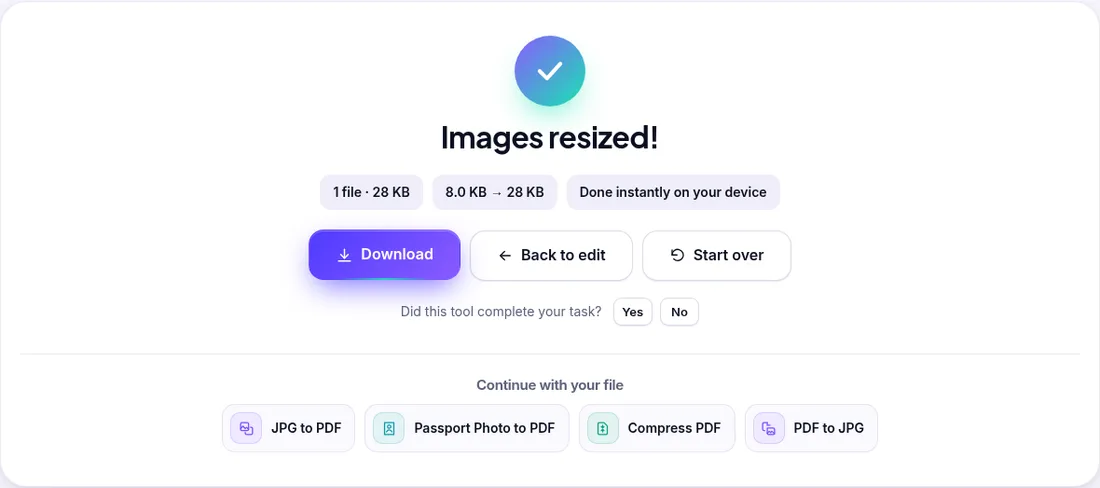
What this shows:
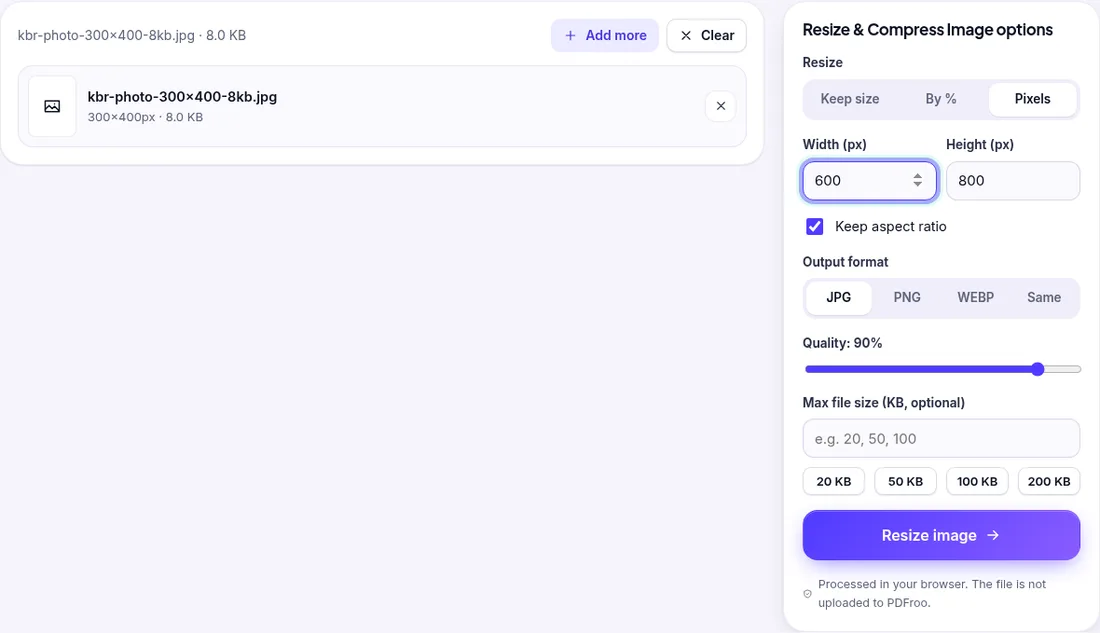
The By % slider cannot help here: it goes from 5% to 100%, so it can only shrink. To enlarge, use Pixels.
Raising the KB satisfies the form’s check, but it does not add detail. When we compared the 28 KB file with the 8 KB original pixel by pixel, they were practically identical: the extra 20 KB is the same picture stored with less compression.
Enlarging is similar. Our 600 × 800 version was made from the 300 × 400 photo, so the tool had to fill in three new pixels for every original one. Next to a real 600 × 800 photo of the same scene it looks softer, and the fine grain is gone.
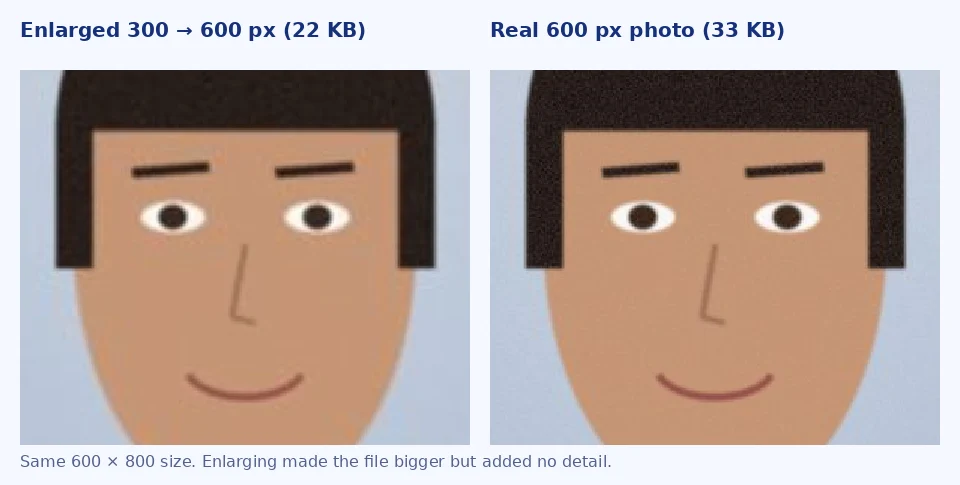
If the photo will be printed on an admit card or ID, or someone has to recognise your face from it, use the original photo when you can. If a small copy is all you have, a moderate enlargement such as 1.5× or 2× together with a higher quality is usually enough to pass a minimum.
Signature uploads are often tiny because they are mostly white. Our fictional signature crop was 300 × 100 px and 3,984 bytes (3.9 KB).
| Settings | Pixel size | Downloaded file | In 10–20 KB? |
|---|---|---|---|
| Quality 96% | 300 × 100 | 6,083 bytes (5.9 KB) | No |
| Quality 100% | 300 × 100 | 15,107 bytes (14.8 KB) | Yes |
| Pixels, width 450, quality 90% | 450 × 150 | 10,126 bytes (9.9 KB) | Too close to call (see below) |
| Pixels, width 600, quality 90% | 600 × 200 | 13,841 bytes (13.5 KB) | Yes |
| Output format PNG | 300 × 100 | 33,318 bytes (32.5 KB) | No, too big |
If the form gives a pixel size for the signature as well, for example 300 × 80 px, set that size in Pixels mode first, then raise the quality. Untick Keep aspect ratio only if your crop already has the right shape, otherwise the signature is stretched.
The third photo was 600 × 800 px and 33,772 bytes (33 KB). Here quality 100% went too far.
| Settings | Pixel size | Downloaded file | In 50–100 KB? |
|---|---|---|---|
| Quality 90% | 600 × 800 | 34,632 bytes (33.8 KB) | No |
| Quality 90% and Max file size 100 | 600 × 800 | 34,632 bytes, the same file | No |
| Quality 96% | 600 × 800 | 47,108 bytes (46.0 KB) | No, just under |
| Quality 98% | 600 × 800 | 57,753 bytes (56.4 KB) | Yes |
| Pixels, width 900, quality 80% | 900 × 1200 | 54,373 bytes (53.1 KB) | Yes |
| Quality 100% | 600 × 800 | 109,228 bytes (106.7 KB) | No, over the maximum |
So the sizes do not grow evenly. Start at 96%, check the result, and go up one step at a time. If 100% overshoots and 98% is still too small, keep 98% and enlarge the width slightly in Pixels mode.
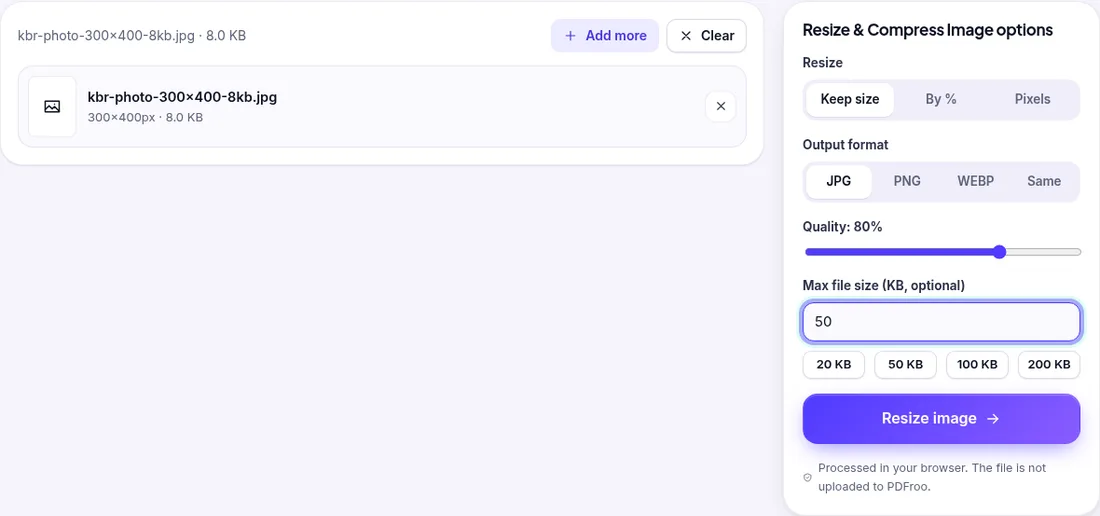
Max file size (KB, optional) is a ceiling. The tool only acts on it when the result is bigger than the number you type: then it lowers the quality, and if needed the pixel size, until the file fits. A file that is already under the number is left as it is. That is why typing 50 for the 8 KB photo returned 7.5 KB, and typing 100 for the 33 KB photo returned exactly the same file as without it. PDFroo has no “minimum KB” box; you reach a minimum with Quality and Pixels and then check the result.
You can still use Max file size as a safety net at the top of a range. With a 20–50 KB rule, for example, typing 48 makes sure a high quality setting never pushes the file over 50 KB.
There is no fixed conversion. The size in KB depends on the pixel size, the JPG quality and how much detail the picture has. A plain background compresses far better than hair or a patterned shirt. From our own tests:
If a form gives pixel dimensions, use them. If it gives only KB, leave the pixel size alone and adjust the quality first.
PDFroo counts 1 KB as 1,024 bytes. Our enlarged signature was 10,126 bytes: PDFroo showed 9.9 KB, while a site that counts 1 KB as 1,000 bytes would see 10.1 KB. Right at the edge of a range, the same file can pass on one site and fail on another. Aim for the middle, for example around 30 KB for a 20–50 KB rule, and check the exact number of bytes in your file manager if an upload is still refused.
| Date | 21 November 2026 |
|---|---|
| Environment | Google Chrome 156 (headless) on Linux x86_64, desktop viewport 1280×900, the live tool at pdfroo.com/resize-image, re-run on a local build of the site with the same results |
| Test files | Made by a script, no real person or real signature: a drawn head-and-shoulders photo with camera-like grain saved as 300 × 400 px, 8,150 bytes and as 600 × 800 px, 33,772 bytes; a fictional handwritten signature cropped to 300 × 100 px, 3,984 bytes |
| Steps | For each setting in the tables above: open the tool, add one file, change only the listed settings, resize and download. Each run started from a fresh page. |
| Results | See the tables above. Every download was opened with Pillow to check its format, pixel size and exact byte count, and compared pixel by pixel with the original. |
| Network | We logged every request the browser made after the image was chosen. None carried the image, its contents or its file name. The requests to PDFroo were GETs for the site’s own files. The only data sent was a Google Analytics batch of usage events, recorded in 3 of the 21 runs (event names tool_view, upload_start, process_complete and download, with the tool name resize-image and file and output counts; 114–275 bytes). Despite its name, upload_start only records that a file was chosen. No request went to a PDFroo processing server; the resized image was produced in the browser. |
See our tool testing methodology for how we test PDFroo tools in general.
Open it in Resize & Compress Image, keep JPG and move Quality to 100%. In our tests that made the file about 3.5 to 3.8 times bigger at the same pixel size (8 KB to 28 KB, 3.9 KB to 15 KB). If that is not enough, also choose Pixels and type a larger width.
No. Max file size only sets an upper limit. A file already under that number is not made bigger.
No. It satisfies the size check, but the picture has no more detail than before. An enlarged photo looks softer than a real photo of that pixel size.
The default quality is 80%. If your photo was saved at a higher quality, re-saving at 80% makes it smaller. Raise Quality before you resize.
Only if the form asks for PNG. In our tests PNG made a 4 KB signature 33 KB and an 8 KB photo 75 KB, which overshot both ranges.
No. The image is resized in your browser. In our network log no request carried the image or its file name. The page does send Google Analytics usage events, such as the tool name and file counts.
Fit a photo under 20, 50, 100 or 200 KB or to an exact pixel width. Tested with a 4 MP phone photo, PNG screenshots and a batch, with real sizes.
Lower an image’s resolution by changing its pixels, not the DPI number. Tested on a 12 MP photo, a text screenshot and a batch, with exact sizes.
Rotating in a PDF viewer is temporary. Save the turn in the file with Rotate PDF, then check it stuck. Tested on a sideways slide deck and a budget report.
Copy one PDF page as many times as you need with Organize PDF’s Duplicate button. Tested on a 3-page form and a 1-page handout on the live tool.
Find pages that repeat after combining PDFs, delete the extra copies, and check the final page count. Tested with overlapping files and a re-scan.
Turn a phone photo of your handwritten signature into a clean, see-through signature on a PDF. We tested six photos: what worked and what left a box.