

How to Convert JPG Images to One PDF File
Learn how to convert JPG images into one PDF file, arrange image order, and create a clean PDF from photos or scans.
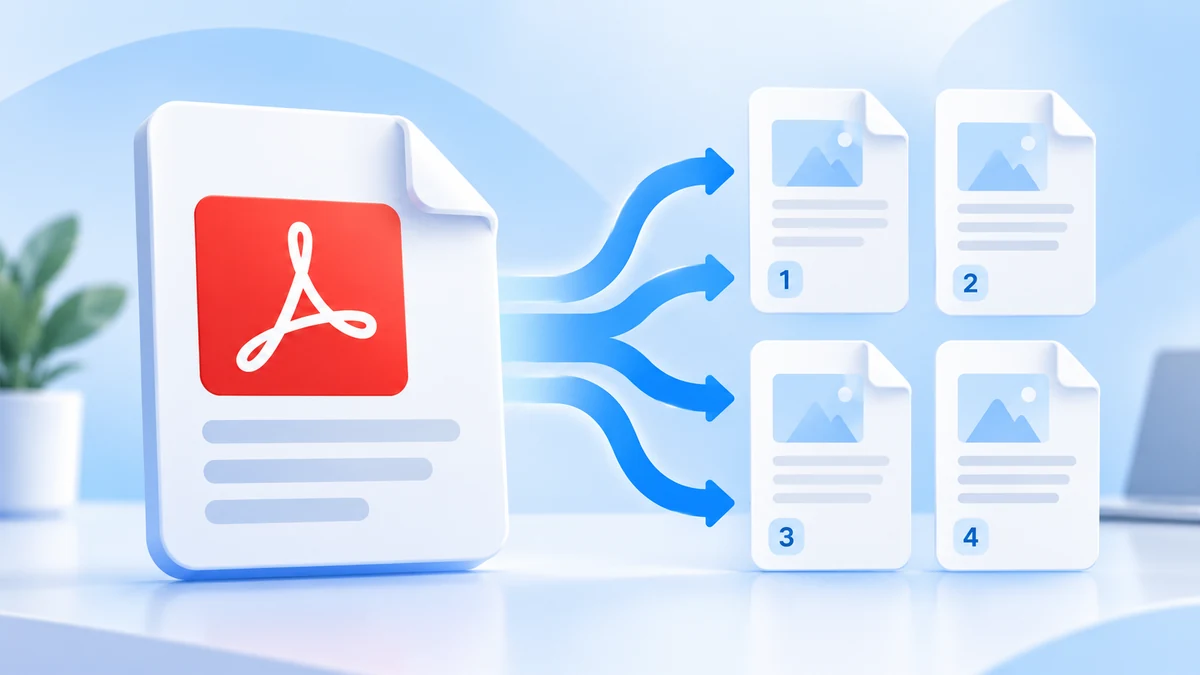
Splitting a PDF is useful when you only need a few pages from a large document, want to send a smaller file, or need to separate chapters, invoices, forms, or scanned pages into individual files. Instead of sharing the full document, you can keep only the pages you actually need.
With PDFroo, you can split a PDF directly in your browser. Your file stays on your device and is not uploaded to PDFroo servers, which makes it a practical option for everyday documents.
You may need to split a PDF when a file contains more pages than necessary. For example, a job application may only require one certificate page, or a client may only need one invoice from a full monthly report.
Splitting a PDF usually means breaking one large file into smaller parts. Extracting pages means choosing specific pages and saving only those pages as a new file. If you only need a few pages, use the Extract PDF Pages tool.
If your goal is to remove blank or unnecessary pages, try the Delete PDF Pages tool instead.
If the split file is still too large for email, you can reduce it with the Compress PDF tool.
Yes. PDFroo works in modern mobile browsers, so you can split a PDF from your phone without installing an app.
Splitting pages usually does not reduce quality because the pages are copied into a new PDF. Quality changes mainly happen when you compress or convert files.
No. PDFroo processes files locally in your browser. Your PDF stays on your device and is not uploaded to PDFroo servers.
You can use the Organize PDF tool to reorder, rotate, delete, or arrange pages before saving.
Learn how to convert JPG images into one PDF file, arrange image order, and create a clean PDF from photos or scans.
Learn what PDF metadata is, what information it can reveal, and why you should check it before sharing important documents.