

How to Split a PDF Into Separate Pages
Learn how to split a PDF into separate pages, extract selected pages, and save smaller PDF files safely in your browser.
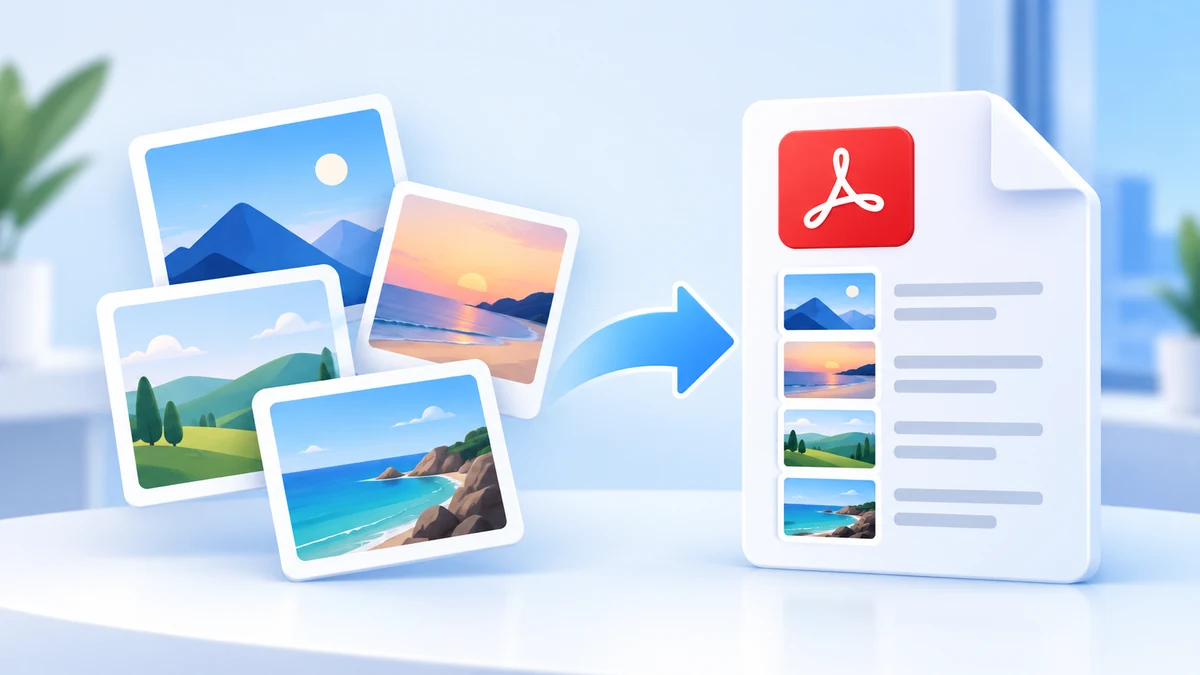
Converting JPG images to PDF is useful when you have photos, scanned pages, receipts, certificates, or form images that need to be shared as one clean document. Instead of sending many separate images, you can combine them into a single PDF file.
PDF is often easier to upload, print, and organize. With PDFroo, you can convert JPG, PNG, or WebP images into a PDF directly in your browser.
You may need a PDF when a website, school, office, or application form does not accept multiple image files. A single PDF keeps everything together and makes the file easier to review.
For best results, use clear images with good lighting. If the image is blurry, dark, or cropped incorrectly, the PDF will also look unclear.
If your final PDF is too large for email or upload, use the Compress PDF tool after conversion.
JPG to PDF turns image files into a PDF document. PDF to JPG does the opposite: it turns PDF pages into image files. If you need image files from a PDF, use the PDF to JPG tool.
If you need passport-size photos arranged on a printable sheet, try the Passport Photo to PDF tool instead.
Images can contain private information, especially if they show IDs, forms, receipts, or personal documents. PDFroo processes your files locally in your browser, so your images are not uploaded to PDFroo servers.
Always review the final PDF before sharing it. Make sure no extra photo, wrong page, or private background is included by mistake.
Yes. You can select multiple images and combine them into one PDF file using the JPG to PDF tool.
Yes. Arrange the images before downloading so the PDF pages appear in the correct order.
The PDF quality depends on the original image quality and the conversion settings. Clear, high-resolution images usually produce better PDF pages.
After converting, use the Compress PDF tool to reduce the file size for email or upload forms.
Learn how to split a PDF into separate pages, extract selected pages, and save smaller PDF files safely in your browser.
Learn what PDF metadata is, what information it can reveal, and why you should check it before sharing important documents.