

What PDF Metadata Is and Why You Should Check It
Learn what PDF metadata is, what information it can reveal, and why you should check it before sharing important documents.
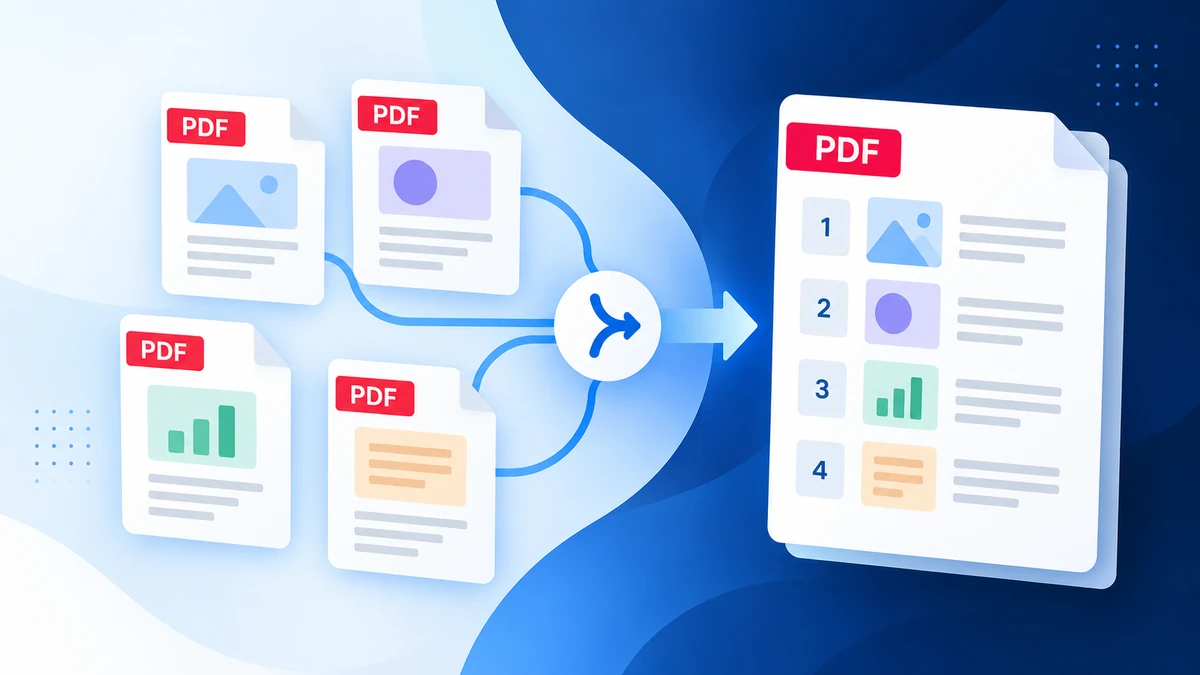
Merging PDFs sounds simple: choose a few files, combine them, and download one final document. But if the files are added in the wrong order, the final PDF can become confusing very quickly. Pages may appear as 1, 10, 11, 2, or a cover page may end up in the middle of the document.
This guide explains how to merge PDF files in the correct order, what mistakes to avoid, and how to check the final file before sharing it.
When you combine multiple PDFs, the order of the files usually becomes the order of the pages in the final PDF. If your files are named badly or selected in the wrong sequence, the merged file may not follow the structure you expected.
This matters most for:
Before merging PDFs, rename your files in a simple numbered format. This makes it easier to select and arrange them correctly.
Good examples:
Avoid names like final.pdf, scan.pdf, new.pdf, or document.pdf when you are working with several files. Those names make mistakes more likely.
PDFroo’s Merge PDF tool lets you combine multiple PDF files in your browser. Your files are processed on your own device and are not uploaded to PDFroo servers.
Basic steps:
The most common mistake is selecting files too quickly without checking the order. Some devices sort files by name, while others may sort by date modified. This can change the order unexpectedly.
Common mistakes include:
If the final PDF has pages in the wrong order, do not send it yet. You can either merge the files again in the correct order or use an organizer tool to rearrange pages.
If the issue is inside one PDF, try Organize PDF. If some pages are not needed, use Delete PDF Pages. If a page is sideways, use Rotate PDF before sharing.
After merging, always open the downloaded PDF and check it from start to finish. This takes a minute, but it can prevent embarrassing mistakes.
Check these points:
PDFs often contain personal or business information. If you are merging resumes, IDs, contracts, certificates, or statements, privacy matters.
PDFroo is built so tools run locally in your browser. Your files stay on your device while using the merge tool. You can learn more in the Privacy Policy.
Yes. You can combine several PDF files into one final PDF using PDFroo’s Merge PDF tool.
This usually happens because files were selected or sorted in an unexpected order. Numbering file names before merging helps prevent this.
Yes. If the final file needs changes, use Organize PDF to move pages into the correct order.
With PDFroo, the merge process runs in your browser, so your files are not uploaded to PDFroo servers.
The safest way to merge PDFs is to prepare your files first, arrange them carefully, and check the final document before sending it. Clear file names and a quick final review can save you from most page-order mistakes.
To combine documents privately, try PDFroo’s Merge PDF tool.
Learn what PDF metadata is, what information it can reveal, and why you should check it before sharing important documents.
Learn how to compress a PDF without losing too much quality, reduce file size, and choose the right settings for email or upload.