

What PDF Metadata Is and Why You Should Check It
Learn what PDF metadata is, what information it can reveal, and why you should check it before sharing important documents.
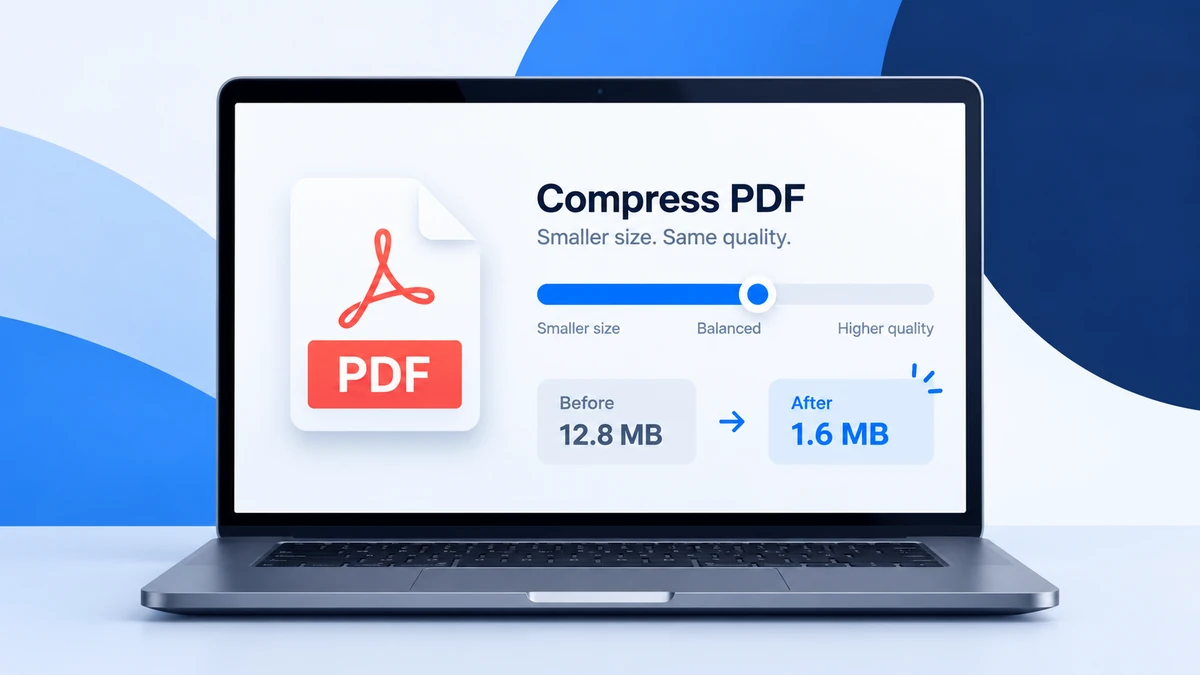
PDF files are useful because they keep documents easy to open, print, and share. But sometimes a PDF becomes too large for email, job applications, school portals, visa forms, or business uploads. A scanned document, photo-heavy file, or design export can easily become 20 MB, 50 MB, or more.
The good news is that you can often reduce a PDF file size without making it look bad. The key is to understand what makes a PDF large and choose the right compression level for your purpose.
A PDF can become large for several reasons. The most common reason is images. If a PDF contains full-page scans or high-resolution photos, each page may act like a large picture inside the document.
Other common reasons include:
A simple text PDF may already be small, so compression may not reduce it much. A scanned PDF usually has more room for compression because images can often be optimized.
PDF compression reduces the file size by optimizing the data inside the file. Depending on the document, this may include lowering image resolution, optimizing image quality, removing unnecessary data, or rebuilding the PDF more efficiently.
The goal is not always to make the smallest file possible. The better goal is to make the file small enough while keeping it readable and useful.
For example, if you need to upload a resume, certificate, or application form, the text must stay clear. If you compress too strongly, the file may become smaller, but the result may look blurry or unprofessional.
If your PDF is for normal reading, email, or online upload, medium compression is usually the safest choice. It can reduce file size while keeping the document easy to read.
Use lighter compression when:
Use stronger compression when:
If you are not sure, start with a medium setting first. Then open the compressed PDF and check the quality before sharing it.
PDFroo’s Compress PDF tool is designed to work directly in your browser. That means your file is processed on your own device instead of being uploaded to PDFroo servers.
Basic steps:
Before you send the file, always check that all pages are included and the text is readable.
Sometimes a PDF does not shrink as much as expected. This does not always mean something is wrong.
Common reasons include:
For example, a 2-page text document may only reduce slightly. But a 25-page scanned file may reduce much more because scanned images usually take more space.
If your file is still too large, try removing unnecessary pages first with Delete PDF Pages. You can also use Split PDF to divide a large file into smaller parts, then compress each part separately.
Here are simple ways to reduce file size while keeping quality:
If your PDF contains important text, do not choose the strongest compression immediately. Strong compression can make small text harder to read.
PDFs often contain personal or business information, such as resumes, contracts, bank statements, school documents, IDs, or application forms. Before using any PDF tool, it is worth checking how the tool handles your file.
PDFroo is built around browser-based processing. Your PDF is handled locally in your browser, and your document is not uploaded to PDFroo servers. You can read more in the Privacy Policy.
Before you email or upload the compressed PDF, check:
A compressed PDF should still look clean. If the file is too blurry, try a lighter compression setting.
It can, depending on the compression level. Medium compression usually keeps a good balance between file size and readability. Very strong compression may reduce image quality.
Most PDFs can be optimized, but not every file will shrink a lot. If a PDF is already small or mostly text, the reduction may be limited.
It depends on the tool. With PDFroo, the file is processed in your browser, so your PDF is not uploaded to PDFroo servers.
Try removing unnecessary pages, splitting the PDF, using grayscale scans, or choosing a stronger compression option. If the PDF contains many photos, image optimization usually helps the most.
Compressing a PDF is about balance. You want the file to be small enough for email or upload, but still clear enough to read. Start with a medium compression setting, review the downloaded file, and only use stronger compression when you really need a smaller size.
If you want a quick, private way to reduce PDF size, try PDFroo’s Compress PDF tool and check the result before sharing your document.
Learn what PDF metadata is, what information it can reveal, and why you should check it before sharing important documents.
Learn how to merge PDF files in the correct order, avoid page-order mistakes, and combine documents safely in your browser.